Latest Updates
New features, improvements, and announcements from the Vector Witch team
Generators Grow: 15 Designs Ready to Cut
Hi everyone! Generators now come in 15 designs, from keychains and ornaments to boxes, a domino set and three photo frames. Pick one, type your names and download a file that is ready to cut.
New This Week
Polaroid Style Frame, Picture Frame, Car Visor Photo Frame, Name Bauble Ornament, Domino Set with Box and Football Player Ornament. On the Picture Frame and the Polaroid Style Frame you can add your own photo and watch the frame go together around it in 3D before you cut anything.
All 15 Generators
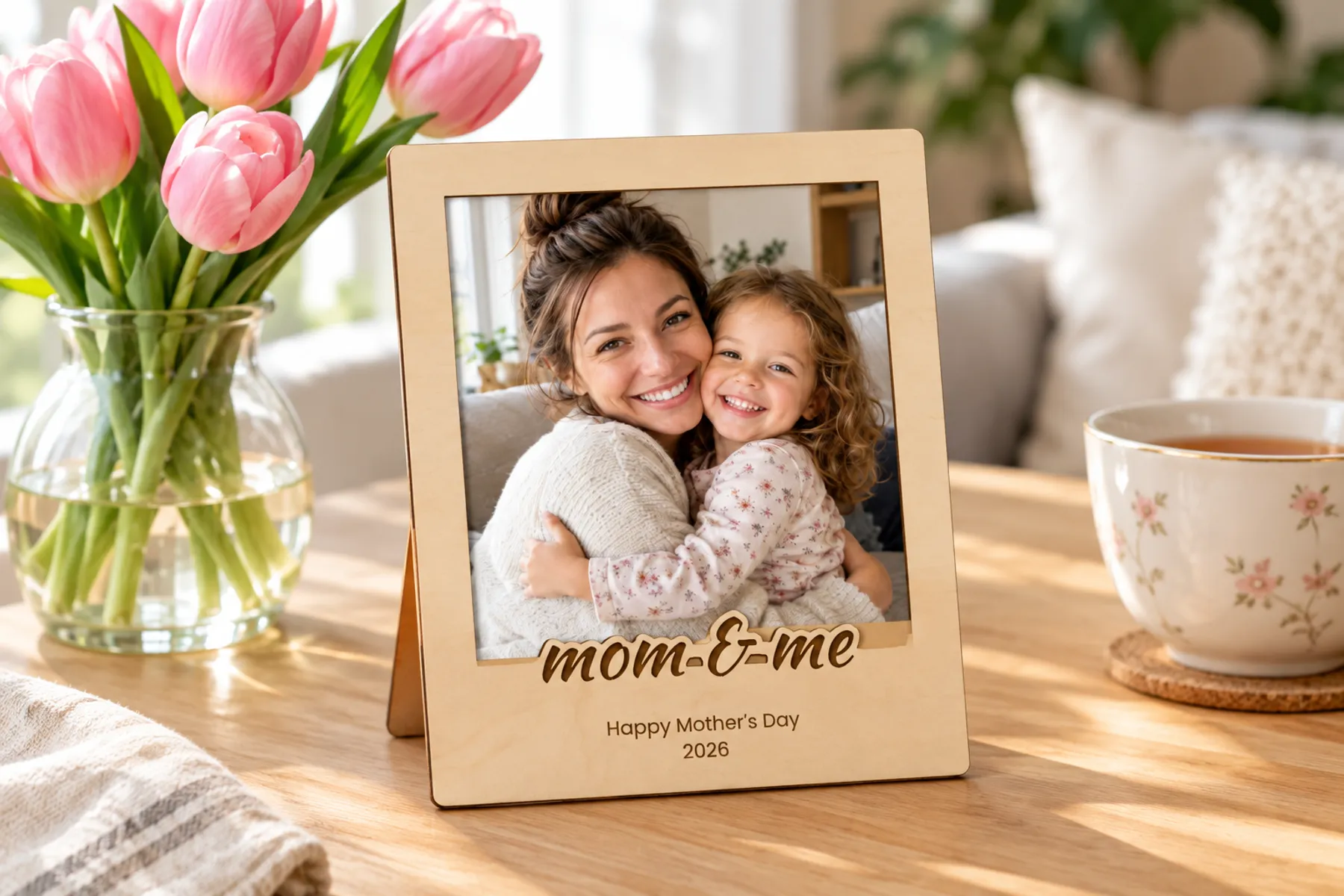 Polaroid Style Frame
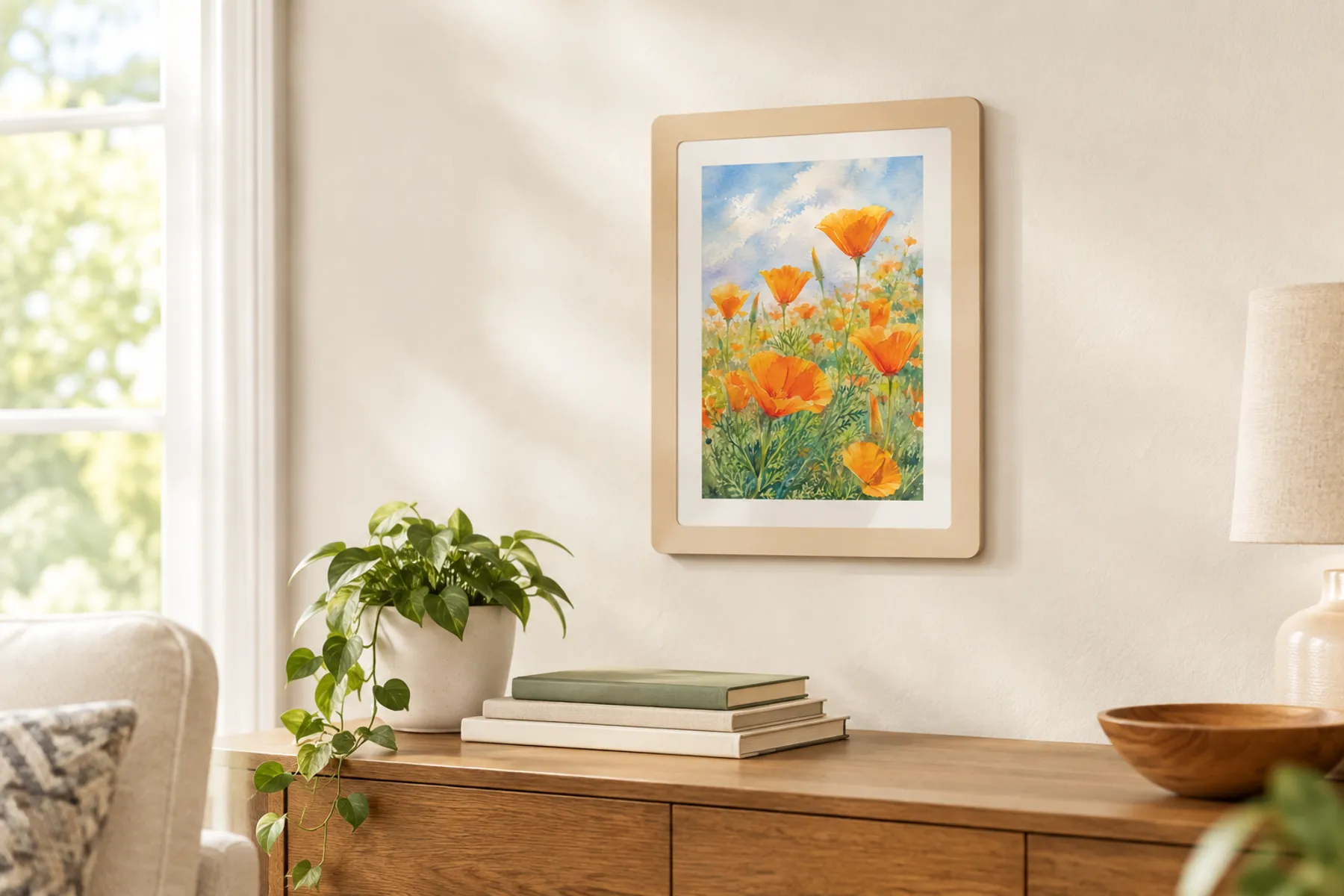 Picture Frame
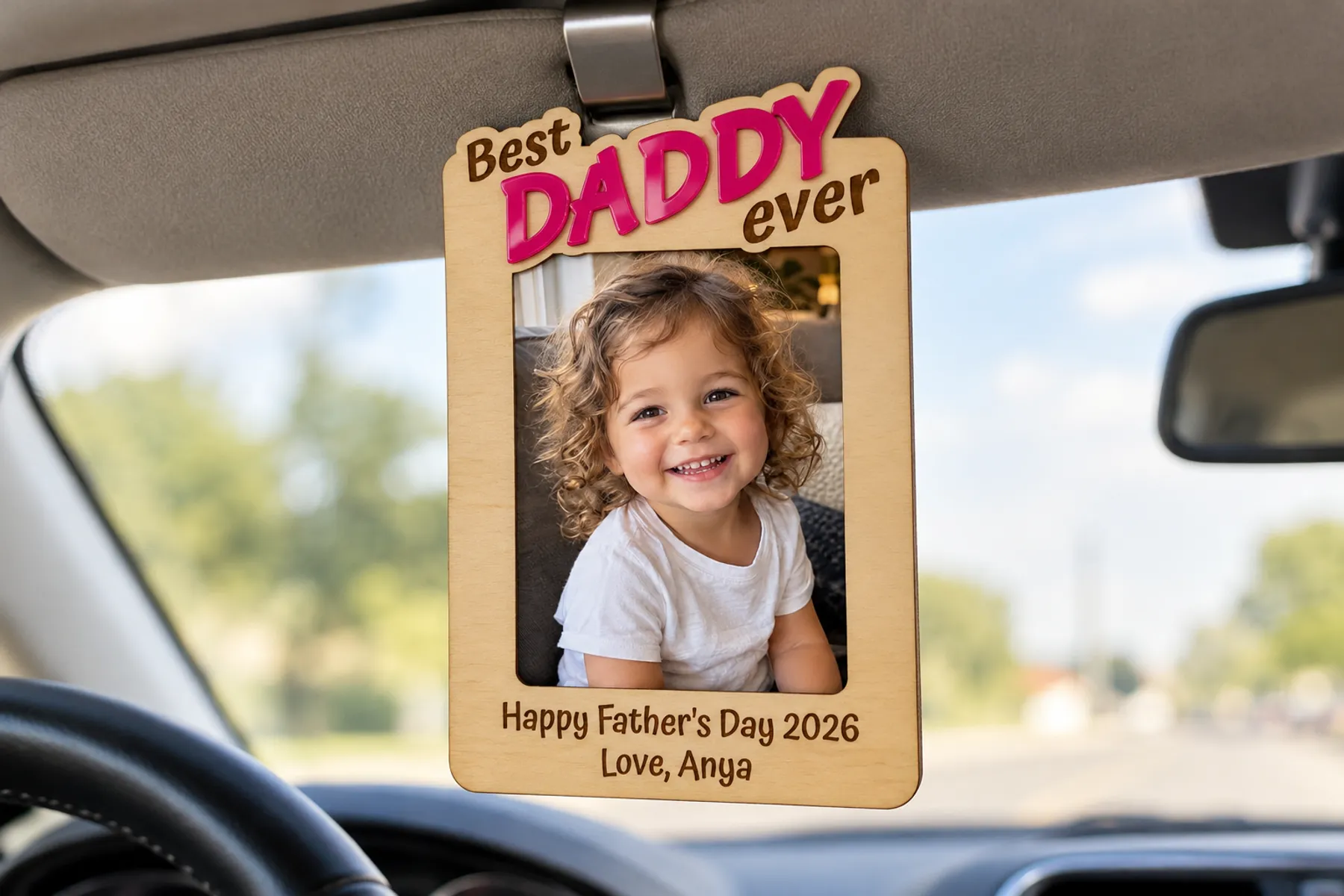 Car Visor Photo Frame
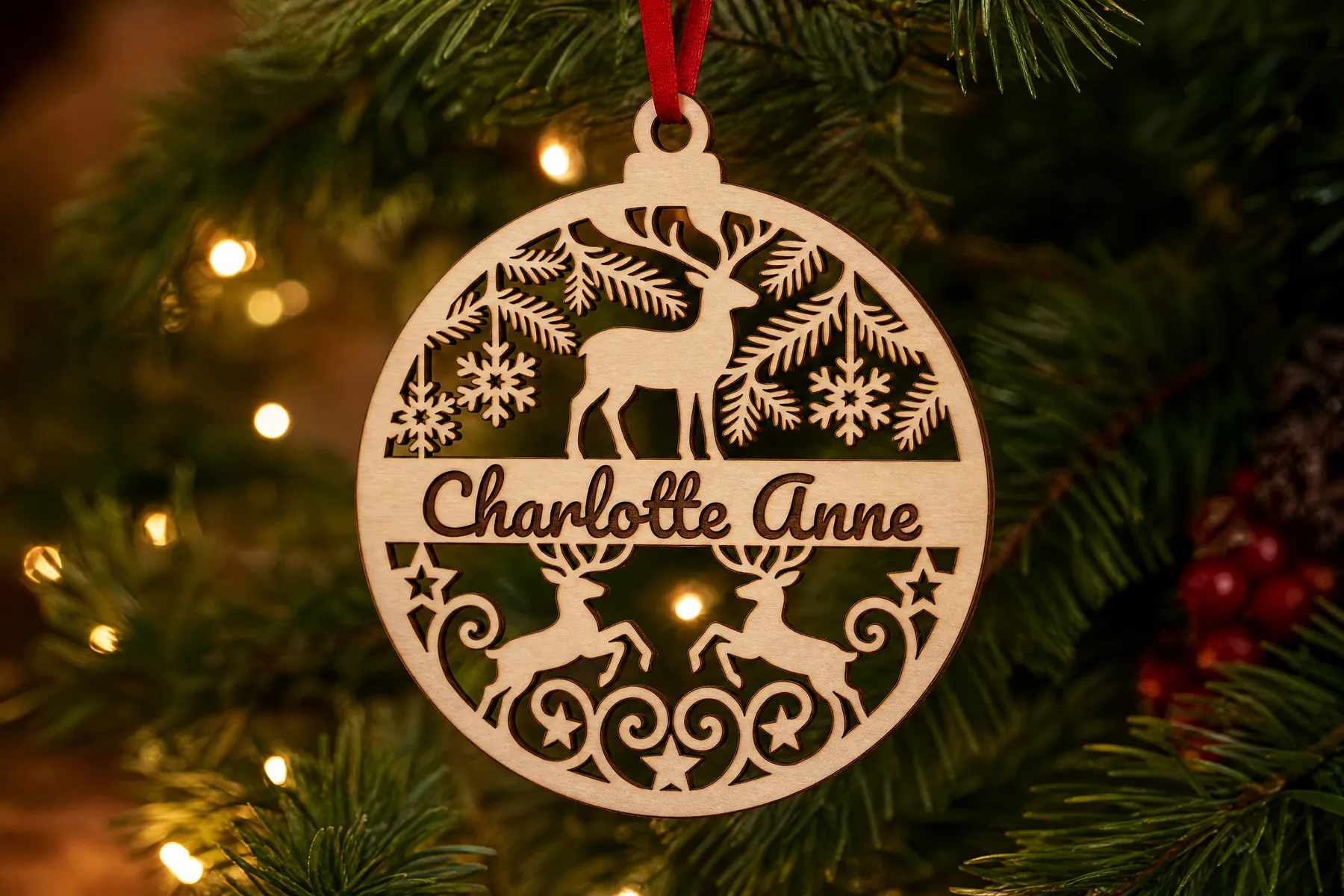 Name Bauble Ornament
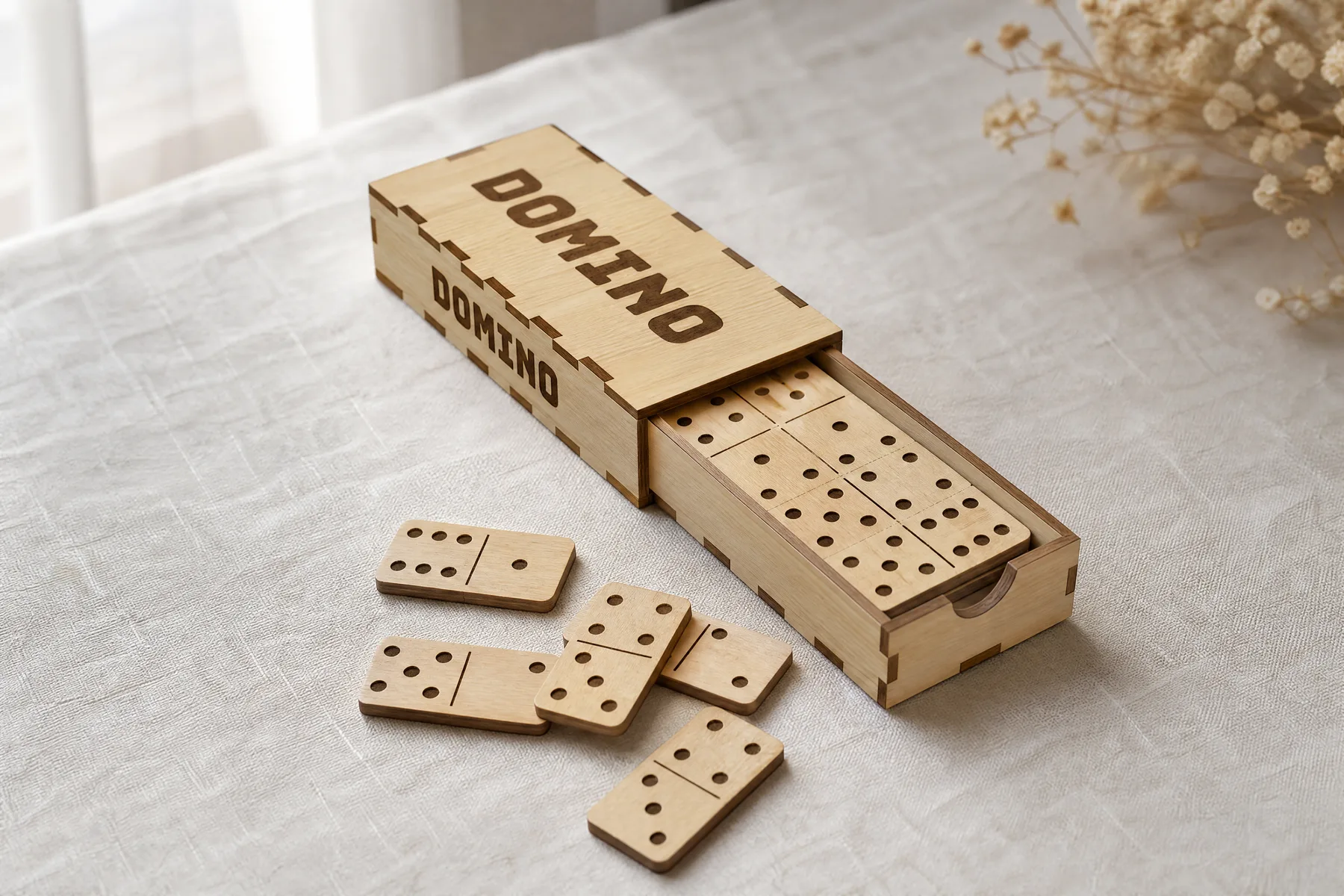 Domino Set with Box
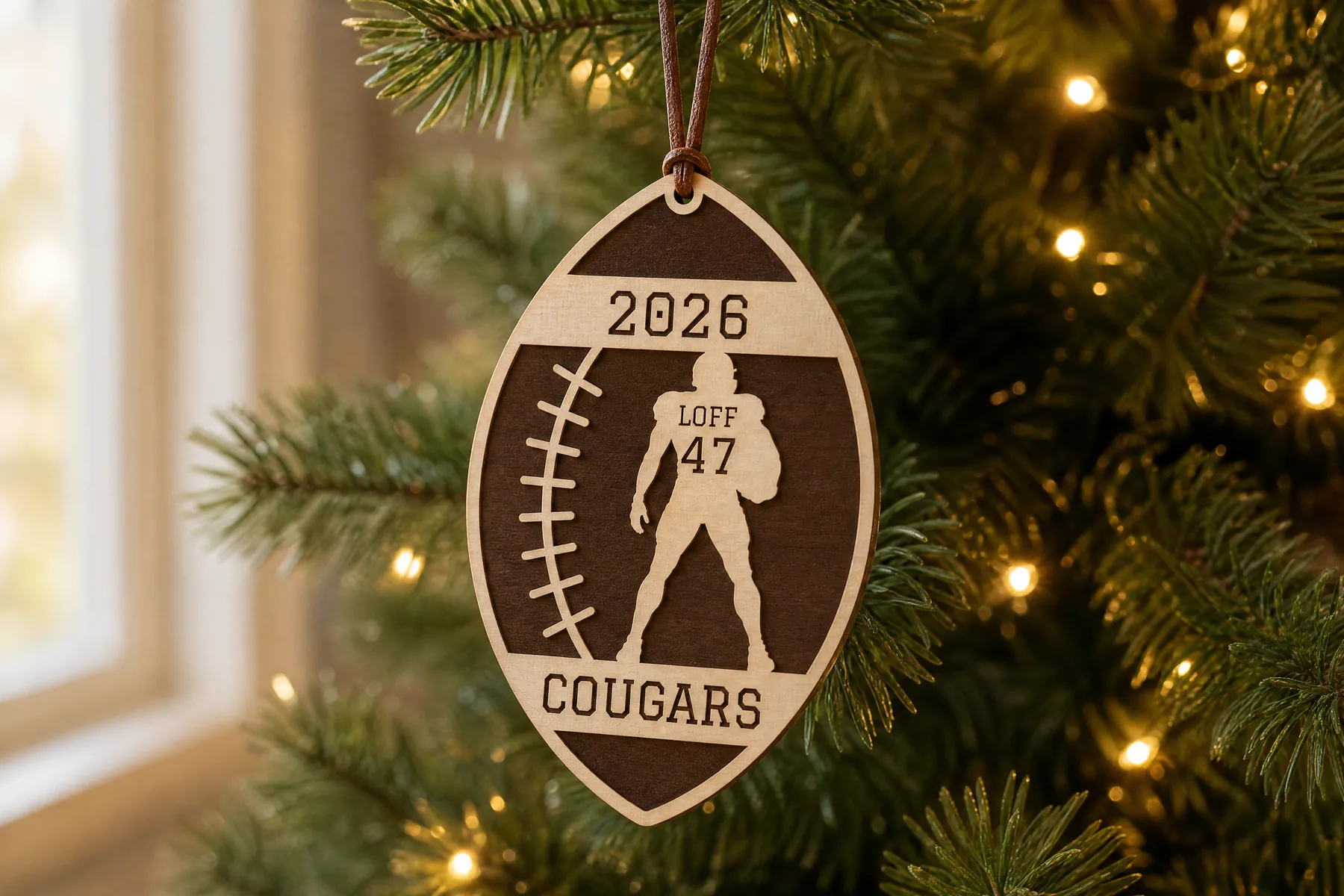 Football Player Ornament
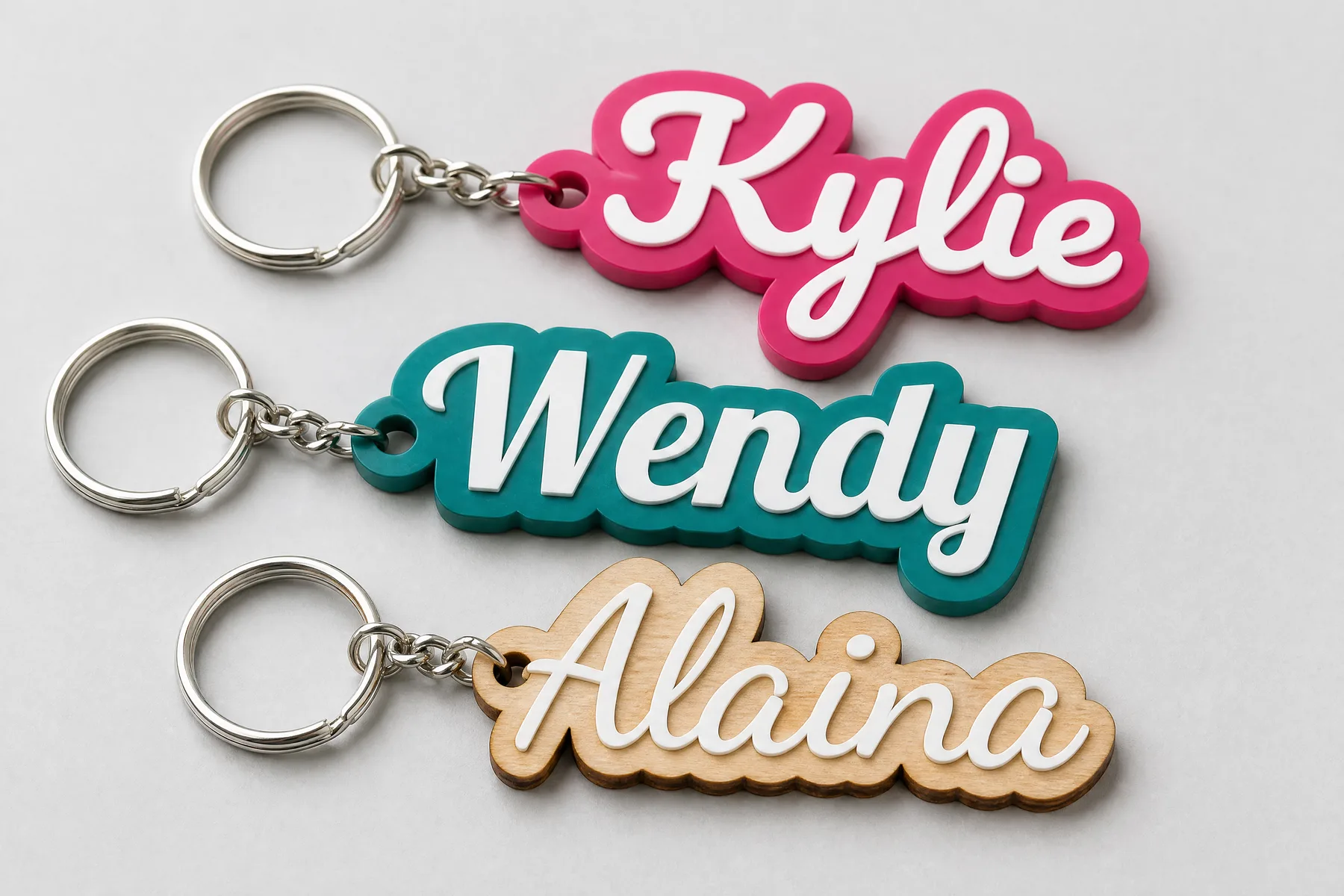 Layered Keychain
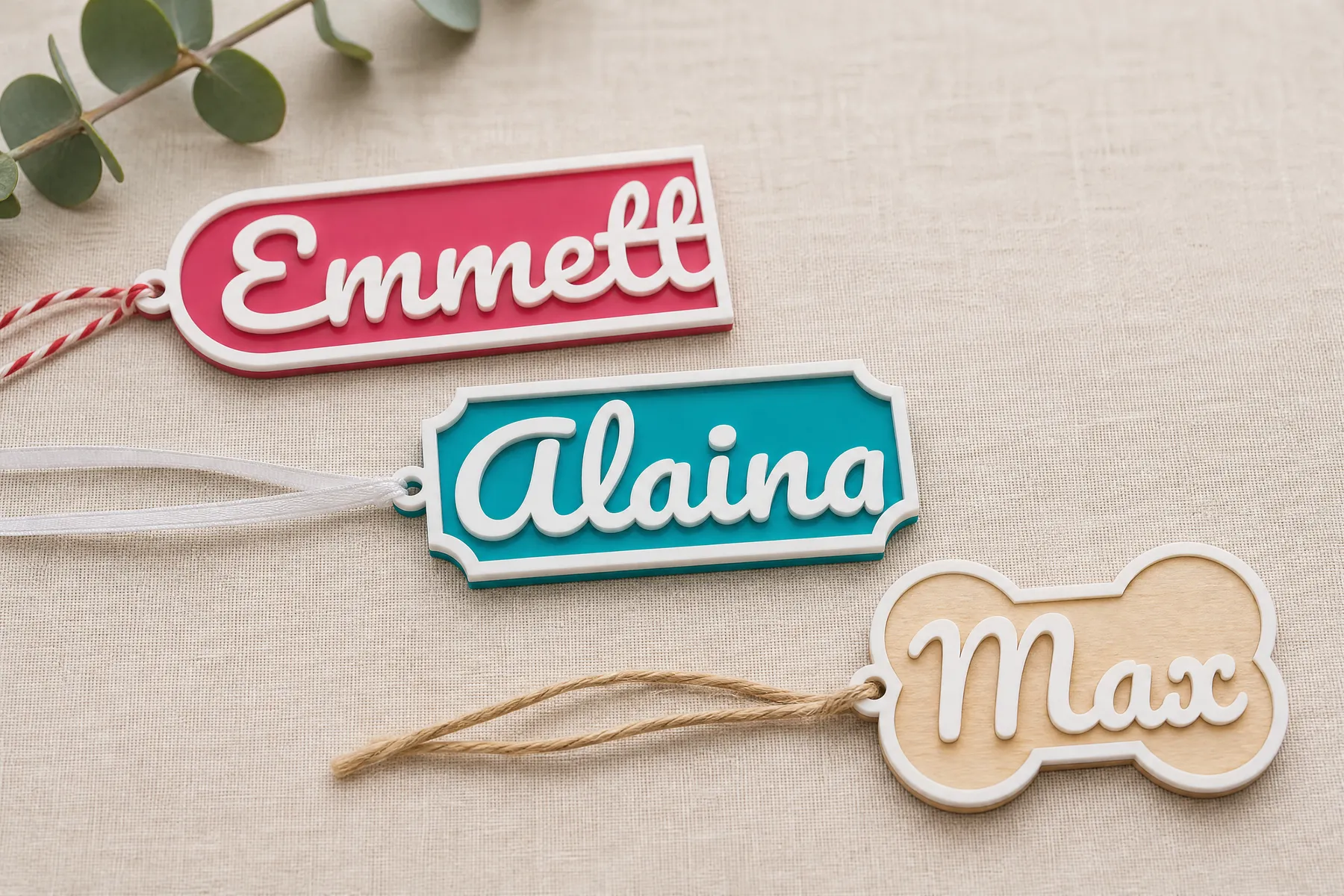 Name Tag
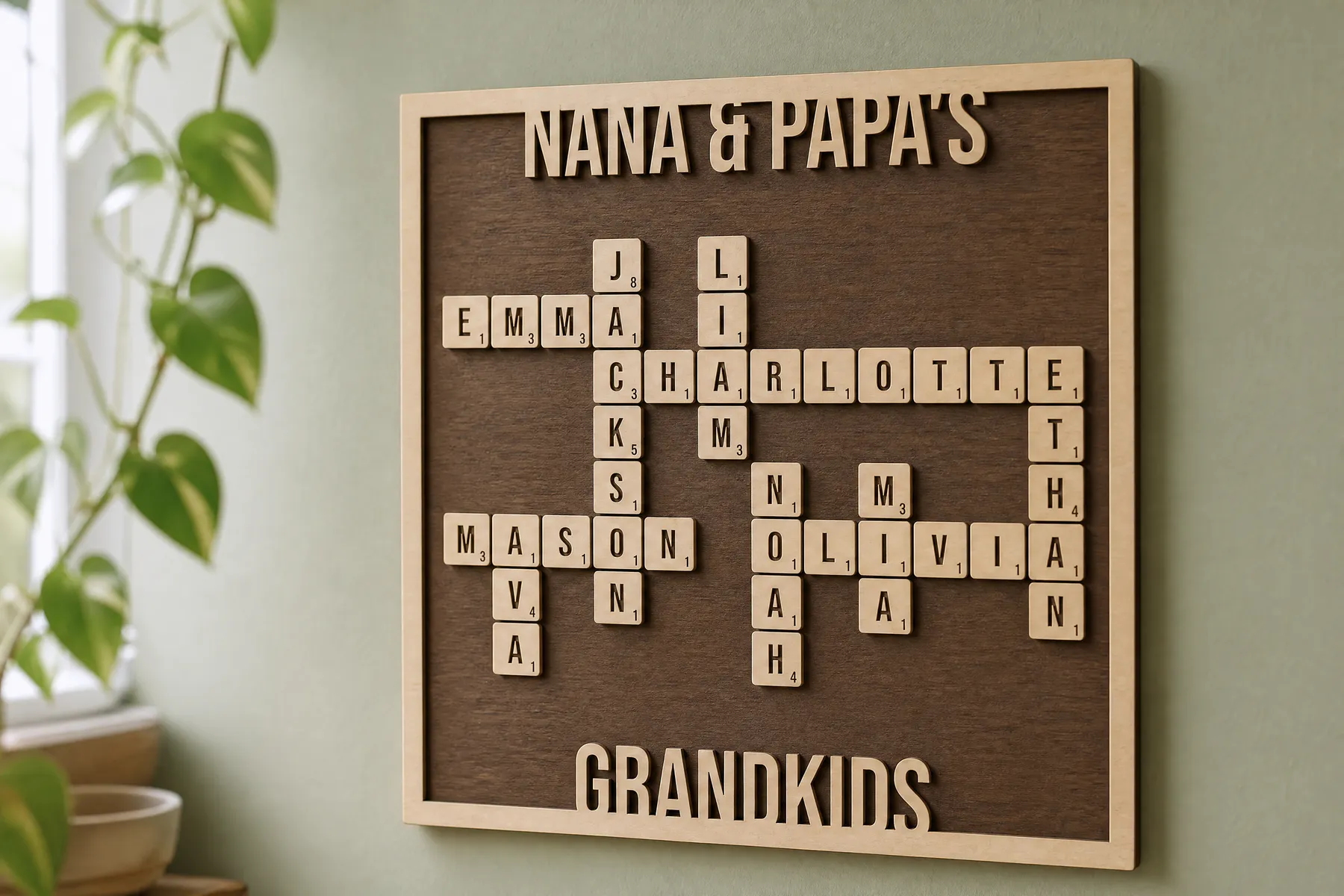 Crossword Sign
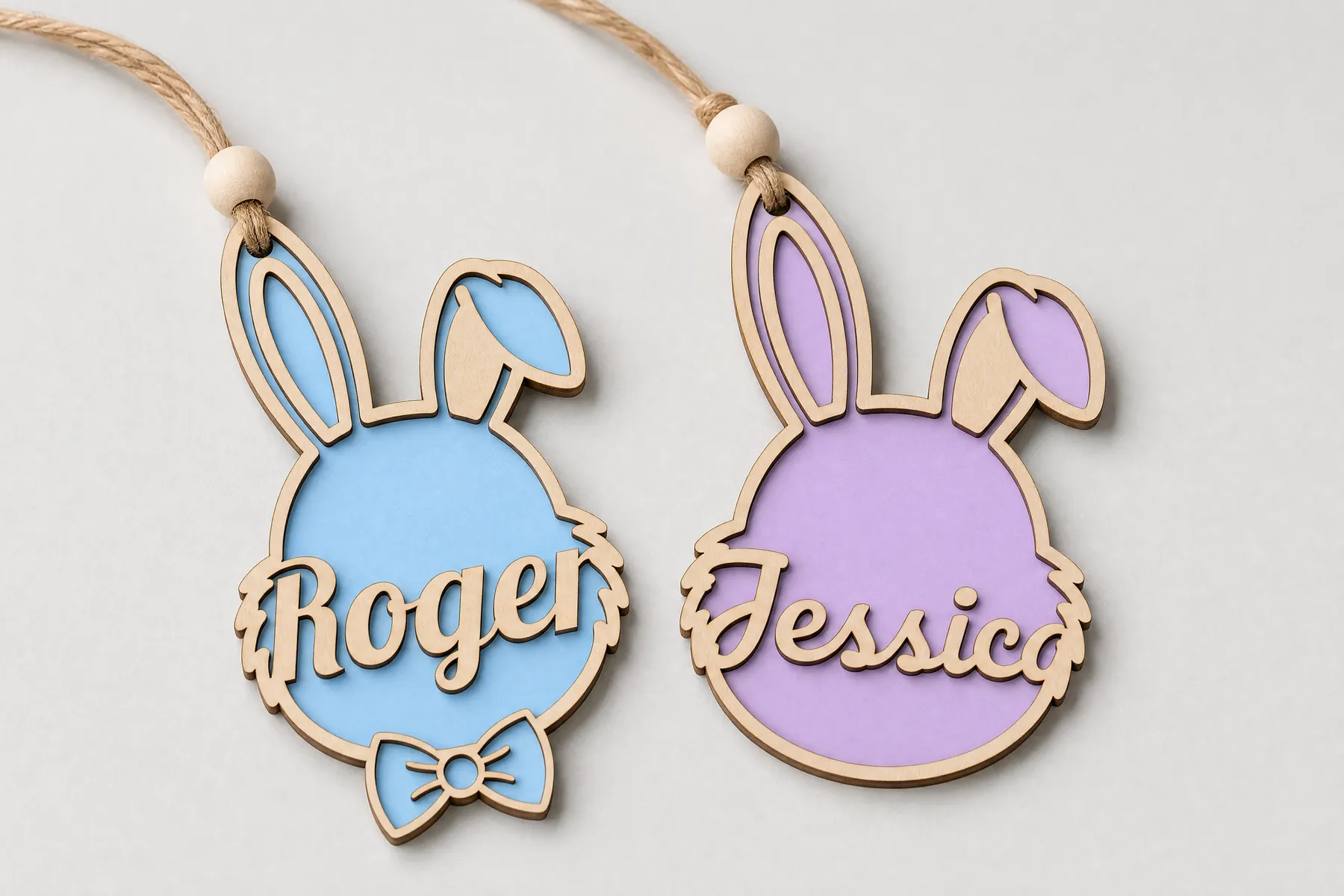 Easter Bunny Tag
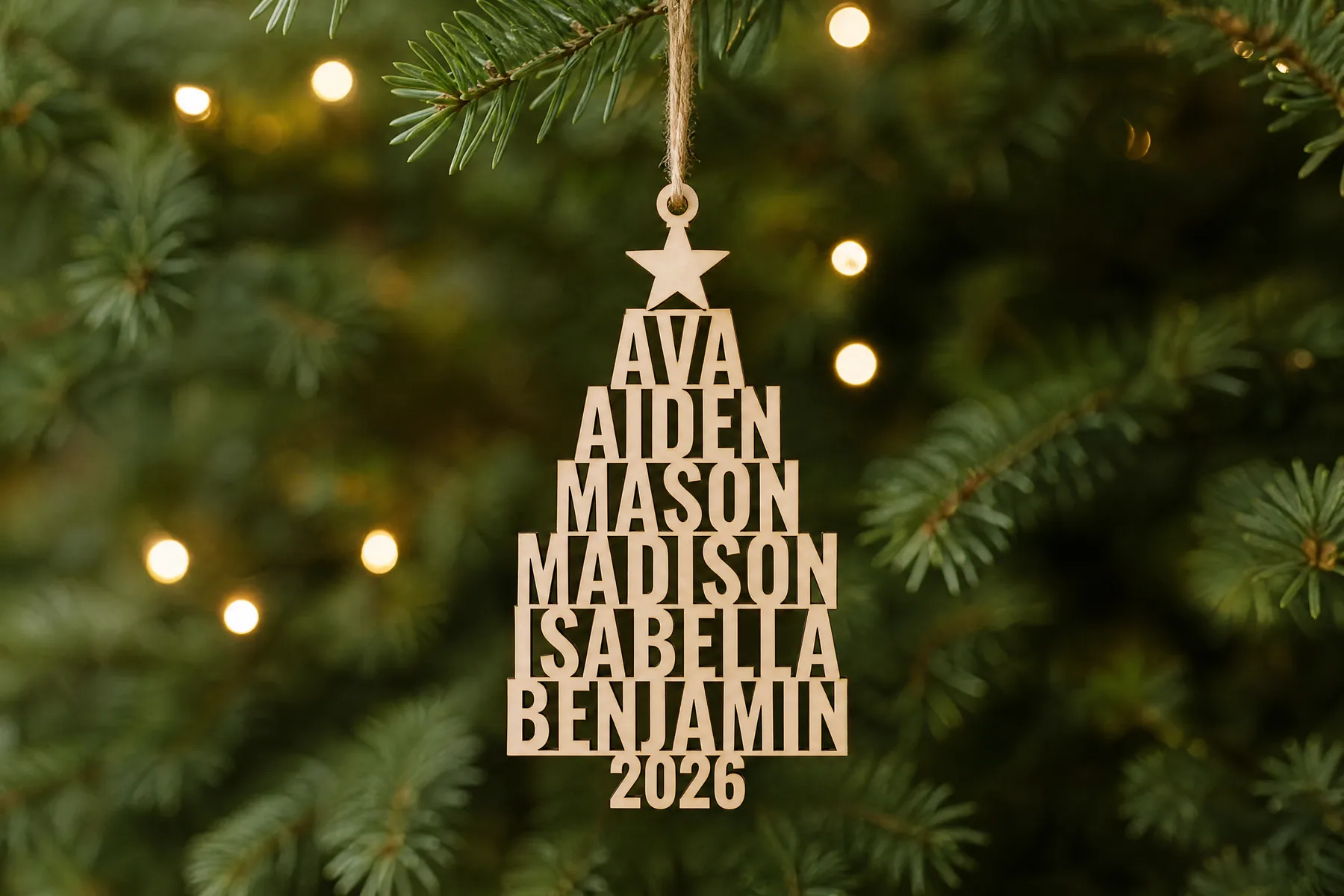 Family Names Tree Ornament
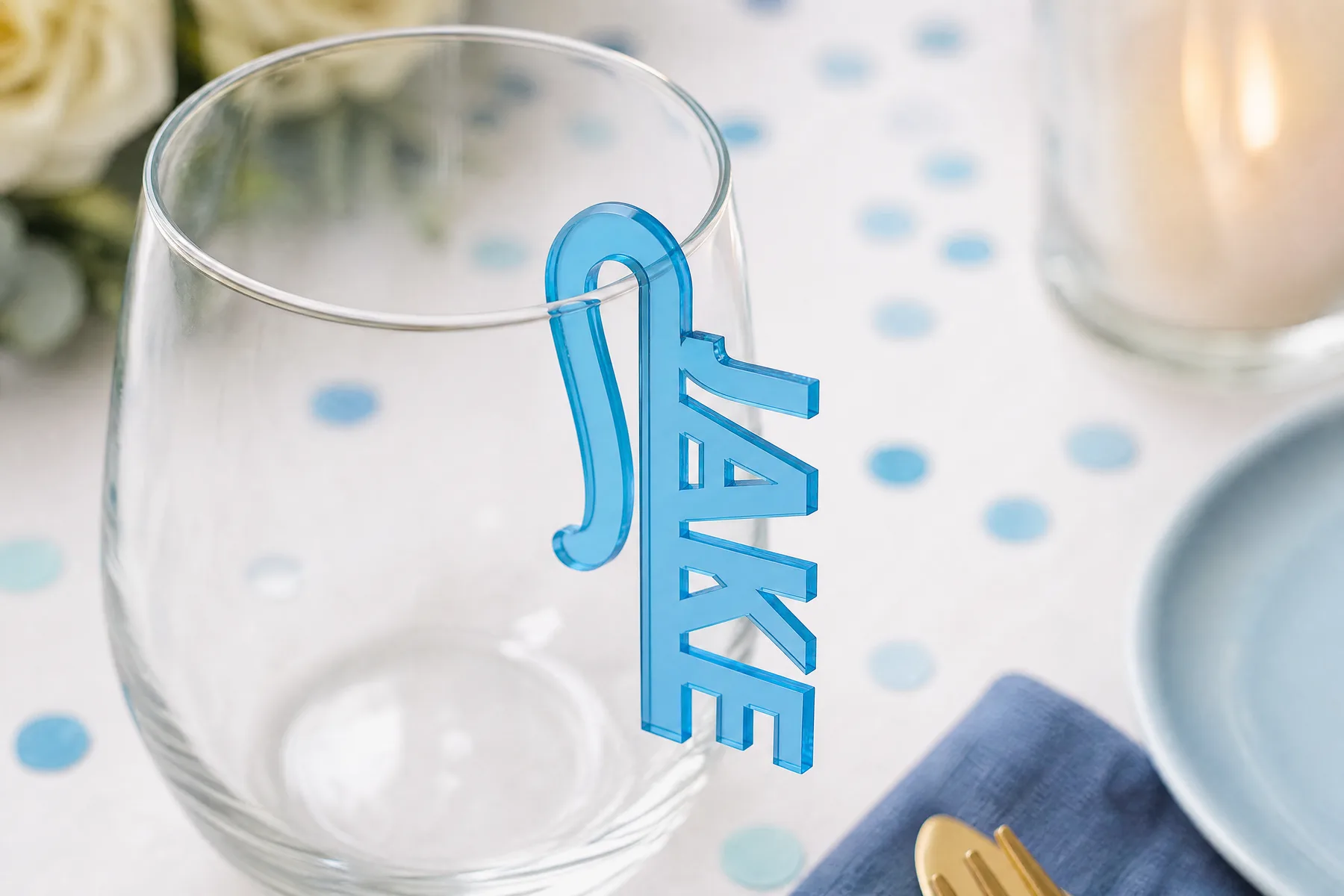 Name Drink Marker Clips
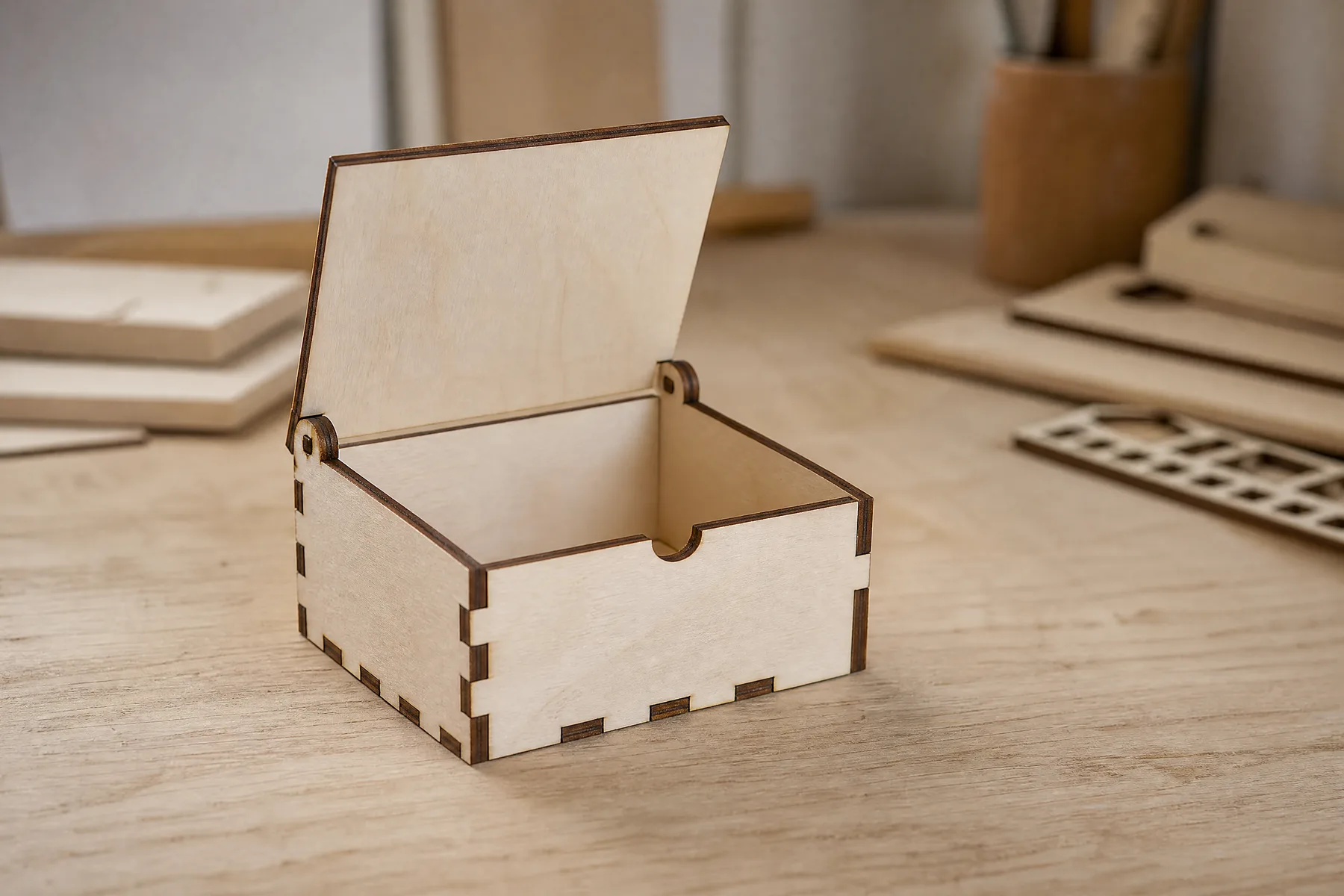 Hinged Lid Box
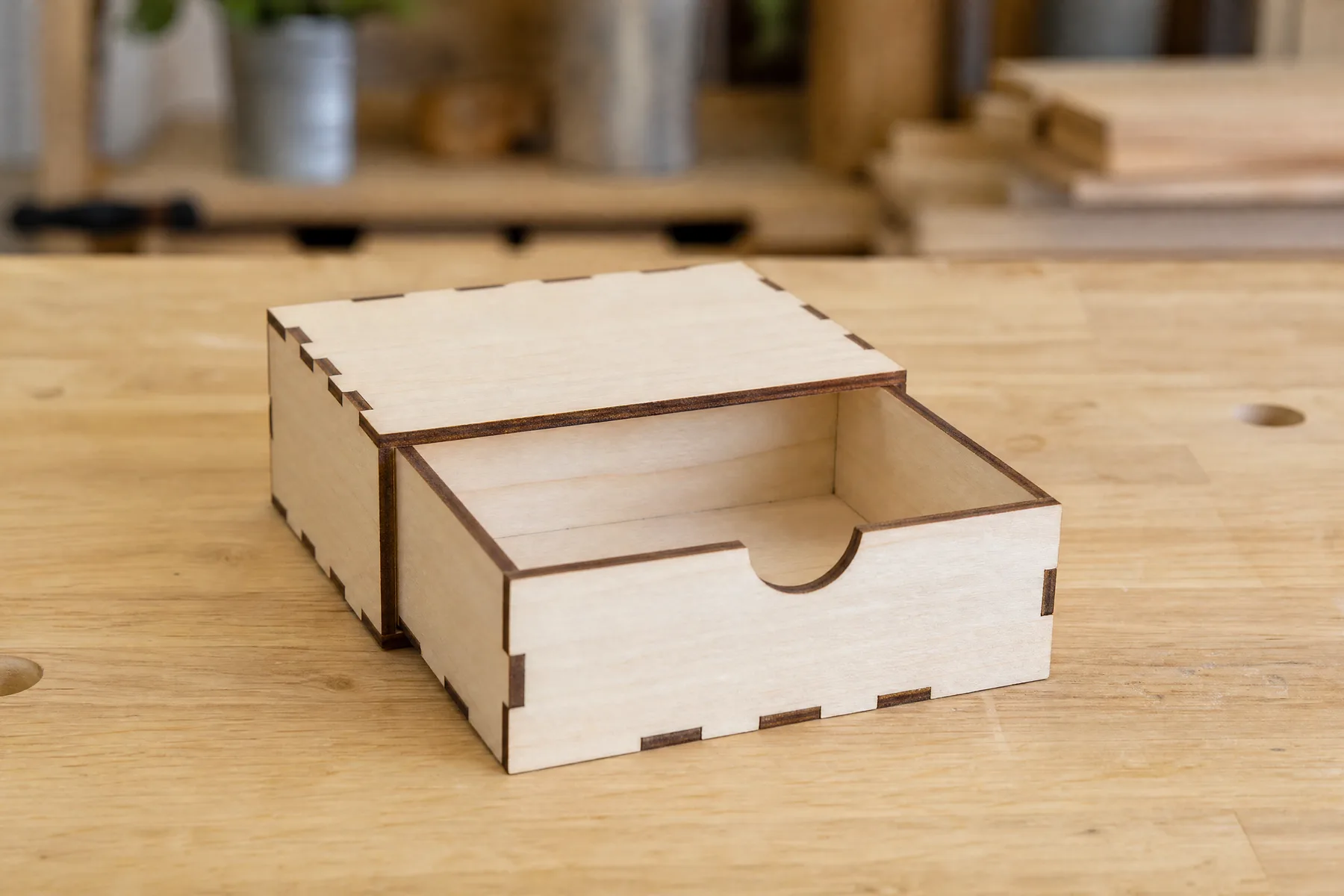 Sliding Drawer Box
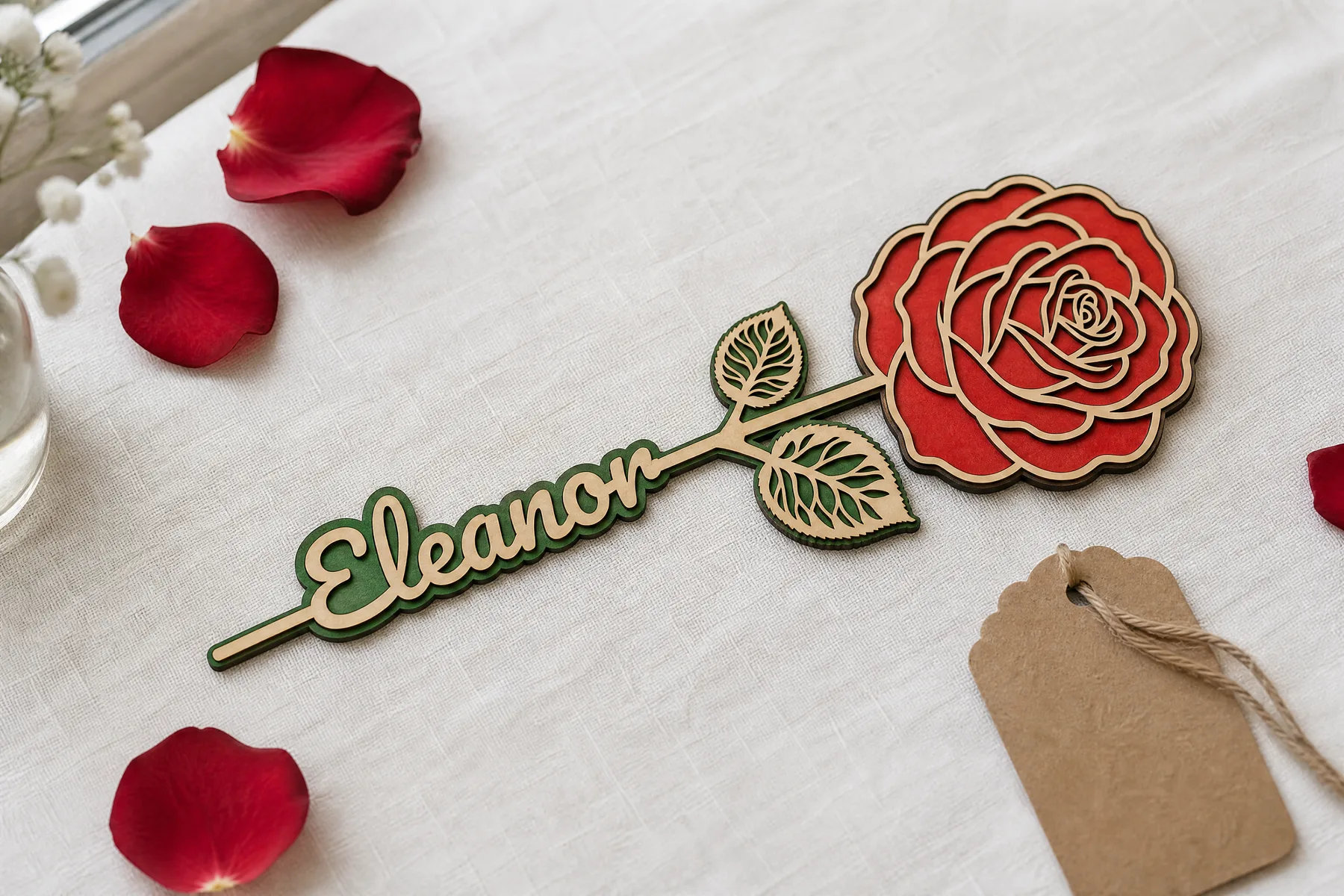 Name Flower
Included in Every Plan
Generators are included in every VectorWitch plan. Download the SVG, 3MF and STL files and open any design in the editor, with no limit.
Find them all under Generators in the menu. Happy creating! ❤️
Generators Grow: 15 Designs Ready to Cut
Hi everyone! Generators now come in 15 designs, from keychains and ornaments to boxes, a domino set and three photo frames. Pick one, type your names and download a file that is ready to cut.
New This Week
Polaroid Style Frame, Picture Frame, Car Visor Photo Frame, Name Bauble Ornament, Domino Set with Box and Football Player Ornament. On the Picture Frame and the Polaroid Style Frame you can add your own photo and watch the frame go together around it in 3D before you cut anything.
All 15 Generators
Polaroid Style FramePicture FrameCar Visor Photo FrameName Bauble OrnamentDomino Set with BoxFootball Player OrnamentLayered KeychainName TagCrossword SignEaster Bunny TagFamily Names Tree OrnamentName Drink Marker ClipsHinged Lid BoxSliding Drawer BoxName FlowerIncluded in Every Plan
Generators are included in every VectorWitch plan. Download the SVG, 3MF and STL files and open any design in the editor, with no limit.
Find them all under Generators in the menu. Happy creating! ❤️
A New Home for Fonts: 1,800+ Fonts and Your Own Uploads
Hi everyone! Fonts now have their own page, with more than 1,800 fonts to browse and room for your own.
See Your Text in Every Font
Open Fonts in the menu, type your own words and watch every font show them at once. Change the size with the slider to compare them the way you will use them. Watch the video above for a quick tour.
Find the Right One Fast
Filter by style: sans serif, serif, display, handwriting or monospace. Looking for a font you already know? Search for it by name. Tap the heart on the fonts you love to keep them close.
Upload Your Own Fonts
Every VectorWitch plan lets you upload your own TTF, OTF, WOFF and WOFF2 files, up to 100 fonts. They appear under My fonts, ready to use like any other.
Everywhere You Write
The same fonts are in the editor, in every generator and in the Family Crossword, so the font you pick here is the font you design with.
Happy creating! ❤️
A New Home for Fonts: 1,800+ Fonts and Your Own Uploads
Hi everyone! Fonts now have their own page, with more than 1,800 fonts to browse and room for your own.
See Your Text in Every Font
Open Fonts in the menu, type your own words and watch every font show them at once. Change the size with the slider to compare them the way you will use them. Watch the video above for a quick tour.
Find the Right One Fast
Filter by style: sans serif, serif, display, handwriting or monospace. Looking for a font you already know? Search for it by name. Tap the heart on the fonts you love to keep them close.
Upload Your Own Fonts
Every VectorWitch plan lets you upload your own TTF, OTF, WOFF and WOFF2 files, up to 100 fonts. They appear under My fonts, ready to use like any other.
Everywhere You Write
The same fonts are in the editor, in every generator and in the Family Crossword, so the font you pick here is the font you design with.
Happy creating! ❤️
Meet Generators: Personalized Cut Files in Seconds
Hi everyone! Meet Generators, a new way to make personalized cut files without drawing anything.
Type, Adjust, Download
Pick a generator, type a name or a list of names, and watch the design draw itself. Change the font, the size and the colours, and see the finished piece before you cut anything. One name or a whole guest list, every piece lands in the same file. Watch the video above to see a keychain go from a name to a cut file.
Nine Generators to Start
Layered Keychain, Name Tag, Crossword Sign, Easter Bunny Tag, Christmas Tree Ornament, Name Drink Marker Clips, Hinged Lid Box, Sliding Drawer Box and Name Flower. The two boxes come with a 3D animation that shows how the panels go together.
Real Sizes, Your Units
Every measurement can be typed or dragged, in millimetres, inches or any unit you work in. Files are cut at exactly the size you set, with red lines for every cut.
SVG, 3D Print and the Editor
Generators are included in every VectorWitch plan. Download the SVG, 3MF and STL files and open any design in the editor, with no limit.
Find them under Generators in the menu. Happy creating! ❤️
Meet Generators: Personalized Cut Files in Seconds
Hi everyone! Meet Generators, a new way to make personalized cut files without drawing anything.
Type, Adjust, Download
Pick a generator, type a name or a list of names, and watch the design draw itself. Change the font, the size and the colours, and see the finished piece before you cut anything. One name or a whole guest list, every piece lands in the same file. Watch the video above to see a keychain go from a name to a cut file.
Nine Generators to Start
Layered Keychain, Name Tag, Crossword Sign, Easter Bunny Tag, Christmas Tree Ornament, Name Drink Marker Clips, Hinged Lid Box, Sliding Drawer Box and Name Flower. The two boxes come with a 3D animation that shows how the panels go together.
Real Sizes, Your Units
Every measurement can be typed or dragged, in millimetres, inches or any unit you work in. Files are cut at exactly the size you set, with red lines for every cut.
SVG, 3D Print and the Editor
Generators are included in every VectorWitch plan. Download the SVG, 3MF and STL files and open any design in the editor, with no limit.
Find them under Generators in the menu. Happy creating! ❤️
Meet the Vectorizer: Any Image to Clean SVG
Hi everyone! Meet the Vectorizer, our new tool that turns your images into clean, editable SVG files.
Upload and Convert
Drop in a PNG, JPG, WEBP or AVIF image and the Vectorizer figures out what kind of image it is. Black and white line art, colorful illustrations and photos each get their own conversion, so you never have to pick a setting. Watch the video above to see it turn a colorful illustration and a black and white design into vectors.
Smooth Curves, Real Vector Paths
Your result is made of smooth Bézier curves with sharp corners where they belong. Colors come out as separate layers, and every part can be opened in the editor, where each shape is selectable on its own. Your files are ready for Cricut, laser cutting and printing at any size.
Unlimited with Your Plan
Every VectorWitch plan includes unlimited Vectorizer conversions, SVG downloads and editing. Converted something before subscribing? You can download it right after you pick a plan.
Tip for Small Images
For the best result, the long side of your image should be at least 500 px. If your image is smaller or blurry, use the “Upscale first” button in the converter and the Vectorizer will take it from there.
Find it at the top of the Tools menu. Happy creating! ❤️
Meet the Vectorizer: Any Image to Clean SVG
Hi everyone! Meet the Vectorizer, our new tool that turns your images into clean, editable SVG files.
Upload and Convert
Drop in a PNG, JPG, WEBP or AVIF image and the Vectorizer figures out what kind of image it is. Black and white line art, colorful illustrations and photos each get their own conversion, so you never have to pick a setting. Watch the video above to see it turn a colorful illustration and a black and white design into vectors.
Smooth Curves, Real Vector Paths
Your result is made of smooth Bézier curves with sharp corners where they belong. Colors come out as separate layers, and every part can be opened in the editor, where each shape is selectable on its own. Your files are ready for Cricut, laser cutting and printing at any size.
Unlimited with Your Plan
Every VectorWitch plan includes unlimited Vectorizer conversions, SVG downloads and editing. Converted something before subscribing? You can download it right after you pick a plan.
Tip for Small Images
For the best result, the long side of your image should be at least 500 px. If your image is smaller or blurry, use the “Upscale first” button in the converter and the Vectorizer will take it from there.
Find it at the top of the Tools menu. Happy creating! ❤️
Smoother SVG Files and iPhone Photo Uploads
Hi everyone! We have two nice improvements for you today.
Smoother, Cleaner SVG Files
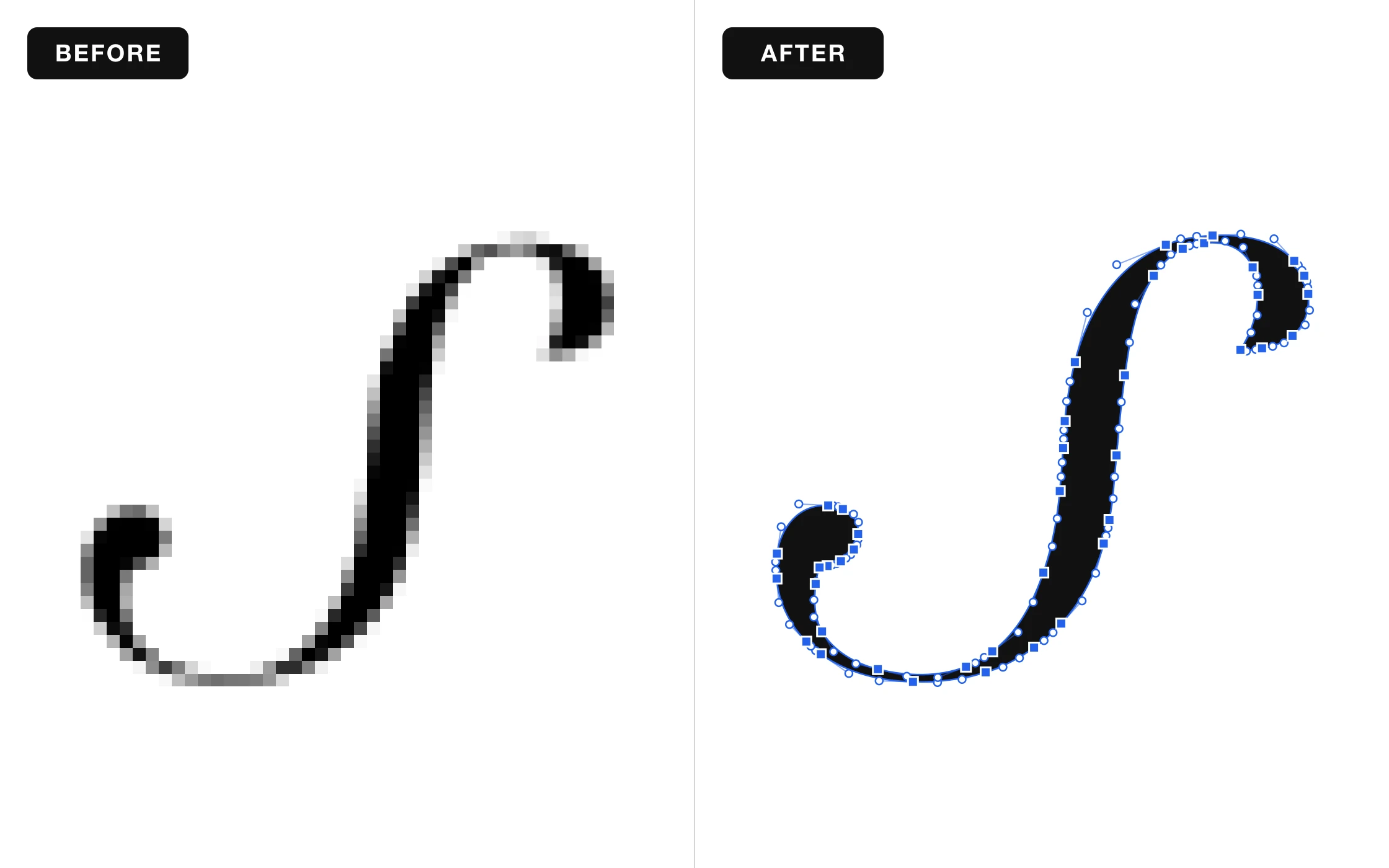
Your SVG files now come out smoother and cleaner. Curves look more natural, edges stay sharp, and your designs are easier to edit and ready for your Cricut, laser, or printer.
Upload Photos from Your iPhone
You can now upload iPhone photos (HEIC) directly. No need to convert them first, just pick a photo and start creating.
Nothing to set up, it all works automatically. Happy creating! ❤️
Smoother SVG Files and iPhone Photo Uploads
Hi everyone! We have two nice improvements for you today.
Smoother, Cleaner SVG Files
Your SVG files now come out smoother and cleaner. Curves look more natural, edges stay sharp, and your designs are easier to edit and ready for your Cricut, laser, or printer.
Upload Photos from Your iPhone
You can now upload iPhone photos (HEIC) directly. No need to convert them first, just pick a photo and start creating.
Nothing to set up, it all works automatically. Happy creating! ❤️
Give Your Photos a Goofy Side with Goofy Doodle
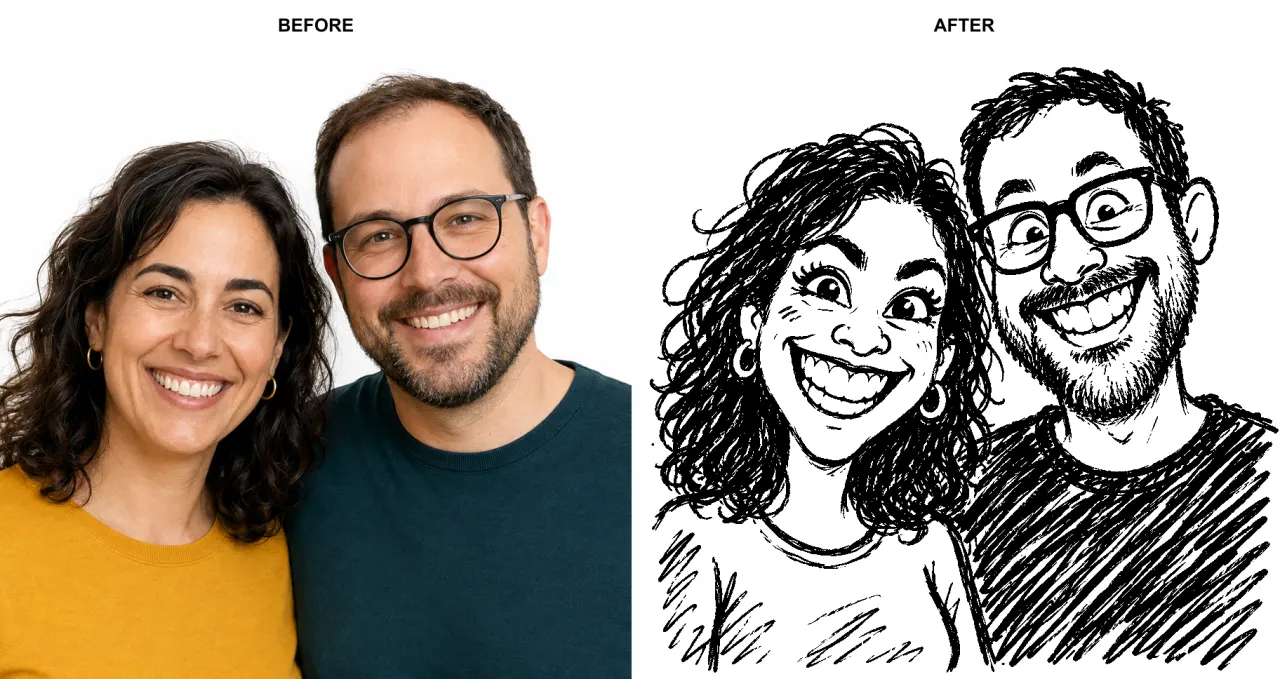
Hi everyone! Meet Goofy Doodle, our new style for turning your photos and ideas into funny, deliberately imperfect drawings.
Familiar faces get a wonderfully silly twist, with big grins, exaggerated expressions, and the charm of a quick sketch made to make you laugh. The aim is to keep the resemblance while bringing out the funny side.
See the transformation in the before-and-after example above, then try your own.
Upload an image or describe your idea, choose Goofy Doodle in the workspace, and let the doodling begin.
Happy creating! ❤️
Give Your Photos a Goofy Side with Goofy Doodle
Hi everyone! Meet Goofy Doodle, our new style for turning your photos and ideas into funny, deliberately imperfect drawings.
Familiar faces get a wonderfully silly twist, with big grins, exaggerated expressions, and the charm of a quick sketch made to make you laugh. The aim is to keep the resemblance while bringing out the funny side.
See the transformation in the before-and-after example above, then try your own.
Upload an image or describe your idea, choose Goofy Doodle in the workspace, and let the doodling begin.
Happy creating! ❤️
Introducing the Scratchboard Style
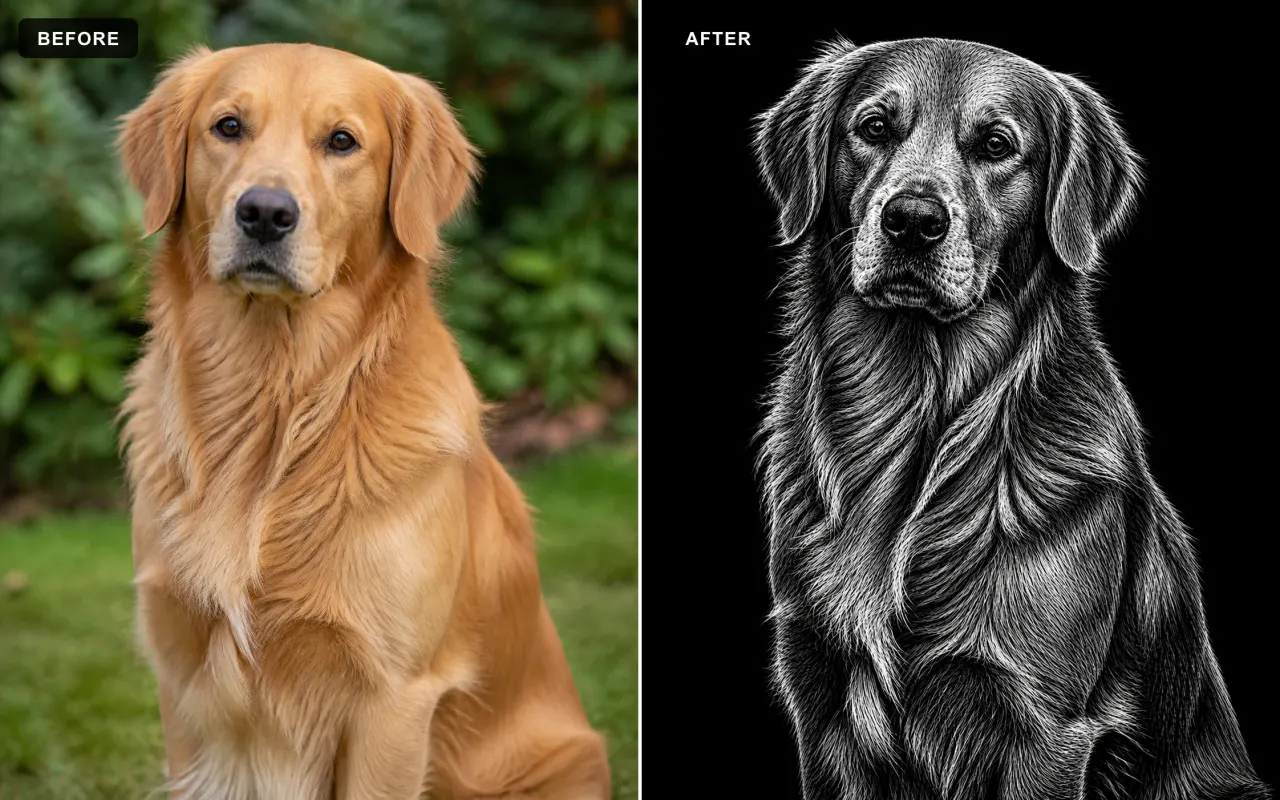
Hi everyone! We’ve added Scratchboard, a new style that gives your ideas and uploaded images the unmistakable look of artwork scratched from black ink.
What Is Scratchboard?
Traditional scratchboard starts with a white clay-coated board covered in black ink. Artists use sharp tools to remove the black surface and reveal the white layer underneath. Every highlight, texture, and fine detail is created through the marks that are scratched away.
White Marks, Deep Black
Our Scratchboard style recreates that reverse-drawing process digitally. Fine white scratches shape fur, hair, faces, fabric, metal, and scenery against a rich black surface. More marks reveal the light, while untouched areas stay black, producing dramatic contrast and a classic engraved finish.
Create from a Prompt or an Image
Describe what you want to create, or upload an image and Scratchboard will rebuild the subject and scene in this carved black-and-white technique. It is more than a black-and-white filter: the image is recreated through thousands of fine scratch marks. Ask to remove the background and your subject will appear against a clean solid-black backdrop.
Made for Bold, Detailed Artwork
Scratchboard works especially well for portraits, pets, wildlife, gothic themes, emblems, keepsakes, posters, and engraving-inspired designs.
Open the workspace and try Scratchboard today. Happy creating! ❤️
Introducing the Scratchboard Style
Hi everyone! We’ve added Scratchboard, a new style that gives your ideas and uploaded images the unmistakable look of artwork scratched from black ink.
What Is Scratchboard?
Traditional scratchboard starts with a white clay-coated board covered in black ink. Artists use sharp tools to remove the black surface and reveal the white layer underneath. Every highlight, texture, and fine detail is created through the marks that are scratched away.
White Marks, Deep Black
Our Scratchboard style recreates that reverse-drawing process digitally. Fine white scratches shape fur, hair, faces, fabric, metal, and scenery against a rich black surface. More marks reveal the light, while untouched areas stay black, producing dramatic contrast and a classic engraved finish.
Create from a Prompt or an Image
Describe what you want to create, or upload an image and Scratchboard will rebuild the subject and scene in this carved black-and-white technique. It is more than a black-and-white filter: the image is recreated through thousands of fine scratch marks. Ask to remove the background and your subject will appear against a clean solid-black backdrop.
Made for Bold, Detailed Artwork
Scratchboard works especially well for portraits, pets, wildlife, gothic themes, emblems, keepsakes, posters, and engraving-inspired designs.
Open the workspace and try Scratchboard today. Happy creating! ❤️
Introducing the Stipple Style
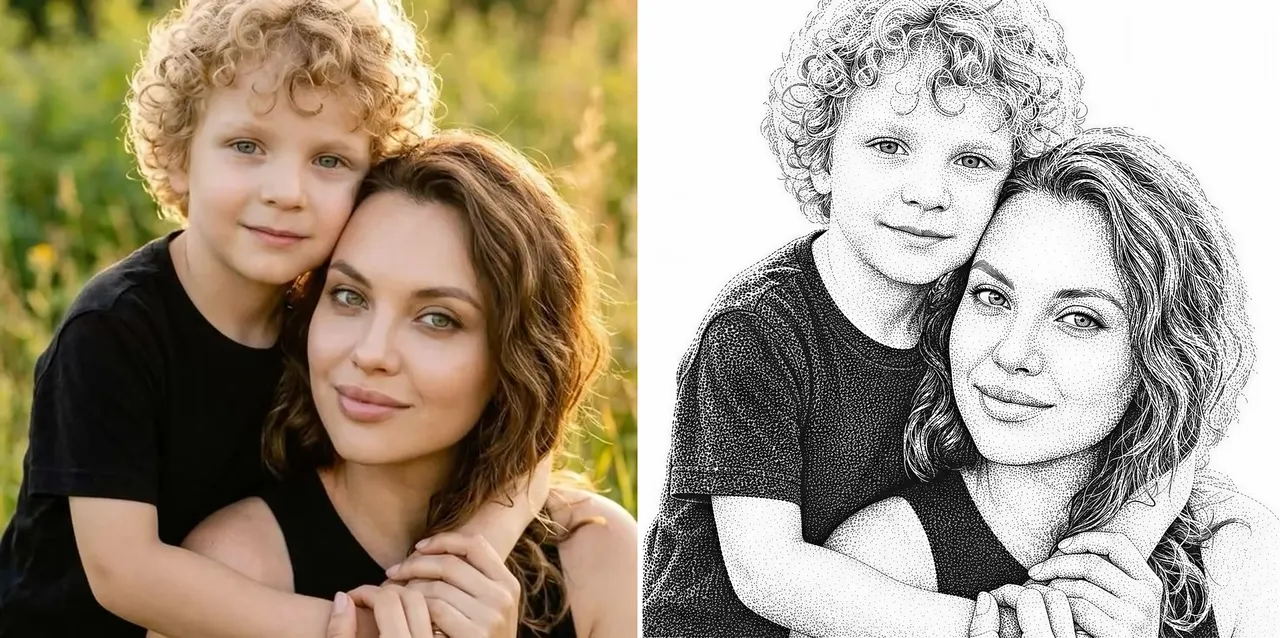
Hi everyone! We just added Stipple, a new style that turns your prompts and photos into classic stipple engravings. It is the same dotwork technique you see on banknote portraits and vintage print art.
Tone Built Entirely from Dots
Stipple draws every image with thousands of tiny black ink dots. Dense clusters form the shadows, sparse dots keep the highlights airy, and short directional strokes shape hair and lashes. It works beautifully for portraits, pets, and detailed keepsakes.
Made for Laser Engraving
The artwork is already pure dots on a clean white background, so it burns great on wood, leather, and slate without any extra dithering setup.
Create from a Prompt or an Image
Describe what you want to create, or upload a photo and Stipple will redraw it while keeping the subject, pose, and framing intact. Select Stipple in the workspace and generate as usual.
Open the workspace and try Stipple today. Happy creating! ❤️
Introducing the Stipple Style
Hi everyone! We just added Stipple, a new style that turns your prompts and photos into classic stipple engravings. It is the same dotwork technique you see on banknote portraits and vintage print art.
Tone Built Entirely from Dots
Stipple draws every image with thousands of tiny black ink dots. Dense clusters form the shadows, sparse dots keep the highlights airy, and short directional strokes shape hair and lashes. It works beautifully for portraits, pets, and detailed keepsakes.
Made for Laser Engraving
The artwork is already pure dots on a clean white background, so it burns great on wood, leather, and slate without any extra dithering setup.
Create from a Prompt or an Image
Describe what you want to create, or upload a photo and Stipple will redraw it while keeping the subject, pose, and framing intact. Select Stipple in the workspace and generate as usual.
Open the workspace and try Stipple today. Happy creating! ❤️
SVG Editor: One-Click White Removal
Hi everyone! We have improved the SVG Editor with a new one-click cleanup for black-and-white SVG artwork.
Remove White in One Click
Open any SVG and click Remove White in the top toolbar. The editor clears white shapes across the entire design while preserving the black artwork.
Clean Transparent Cutouts
White regions become true transparent negative space instead of simply being recolored, making the result ready for laser cutting, vinyl, printing, and further editing.
Works Across Complex SVGs
The cleanup handles multi-path artwork in one pass and combines the result into a single compound path for a tidier Objects panel.
Undo and Redo Included
The operation is added to editor history, so you can reverse or reapply it whenever you need.
Open a design in the SVG Editor and try Remove White from the top toolbar. Happy creating! ❤️
SVG Editor: One-Click White Removal
Hi everyone! We have improved the SVG Editor with a new one-click cleanup for black-and-white SVG artwork.
Remove White in One Click
Open any SVG and click Remove White in the top toolbar. The editor clears white shapes across the entire design while preserving the black artwork.
Clean Transparent Cutouts
White regions become true transparent negative space instead of simply being recolored, making the result ready for laser cutting, vinyl, printing, and further editing.
Works Across Complex SVGs
The cleanup handles multi-path artwork in one pass and combines the result into a single compound path for a tidier Objects panel.
Undo and Redo Included
The operation is added to editor history, so you can reverse or reapply it whenever you need.
Open a design in the SVG Editor and try Remove White from the top toolbar. Happy creating! ❤️
Introducing the Halftone Generator
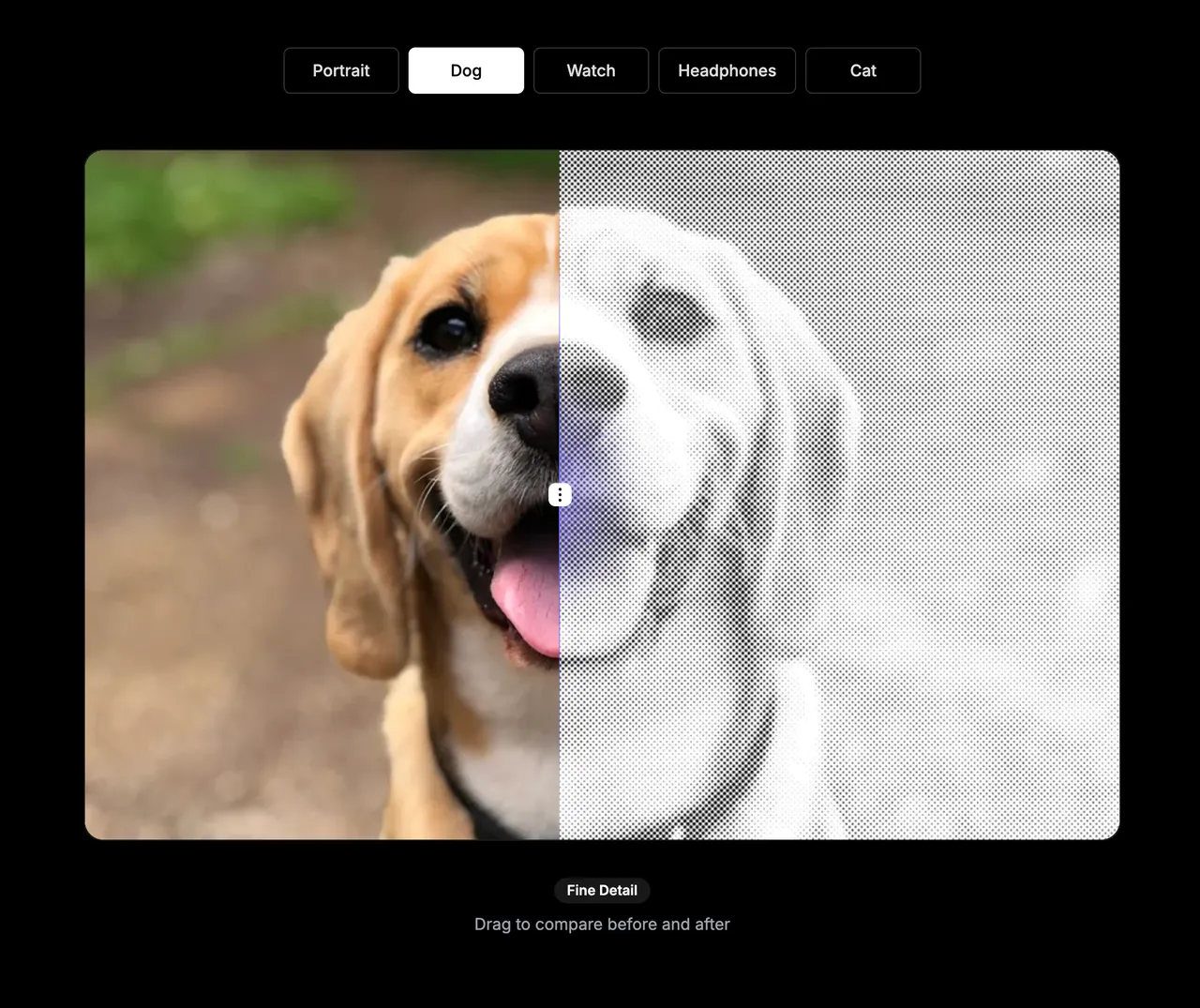
Halftone is a technique that turns an image into a pattern made from dots, squares, or lines. Darker areas use larger or more closely spaced marks, while lighter areas use smaller or more widely spaced marks. It is commonly used in print, posters, engraving, and decorative design.
We've added a new Halftone Generator to VectorWitch. Turn any photo or image into a customizable halftone design directly in your browser.
Choose Your Halftone Style
Create classic dot patterns, bold square patterns, or line-based halftones. Adjust the spacing, angle, dot or line scale, brightness, contrast, and inversion until the result looks right.
Preview Every Change Instantly
Upload a JPG, PNG, or WebP image and see the effect update in real time. Your source image stays on your device, so you can experiment quickly and privately.
Start with Presets
Use a preset for fine detail, a bold poster look, or line engraving, then fine-tune the settings to create your own style.
Export the Result Your Way
Download your finished halftone as a PNG, JPG, BMP, or SVG file. SVG export creates a vector-based pattern that can be useful for further editing, while the raster formats are convenient for everyday design and image workflows.
Free to Use
The Halftone Generator is completely free and does not use credits. Open it from the Tools menu and turn your next image into a halftone design.
Have fun creating! ❤️
Introducing the Halftone Generator
Halftone is a technique that turns an image into a pattern made from dots, squares, or lines. Darker areas use larger or more closely spaced marks, while lighter areas use smaller or more widely spaced marks. It is commonly used in print, posters, engraving, and decorative design.
We've added a new Halftone Generator to VectorWitch. Turn any photo or image into a customizable halftone design directly in your browser.
Choose Your Halftone Style
Create classic dot patterns, bold square patterns, or line-based halftones. Adjust the spacing, angle, dot or line scale, brightness, contrast, and inversion until the result looks right.
Preview Every Change Instantly
Upload a JPG, PNG, or WebP image and see the effect update in real time. Your source image stays on your device, so you can experiment quickly and privately.
Start with Presets
Use a preset for fine detail, a bold poster look, or line engraving, then fine-tune the settings to create your own style.
Export the Result Your Way
Download your finished halftone as a PNG, JPG, BMP, or SVG file. SVG export creates a vector-based pattern that can be useful for further editing, while the raster formats are convenient for everyday design and image workflows.
Free to Use
The Halftone Generator is completely free and does not use credits. Open it from the Tools menu and turn your next image into a halftone design.
Have fun creating! ❤️