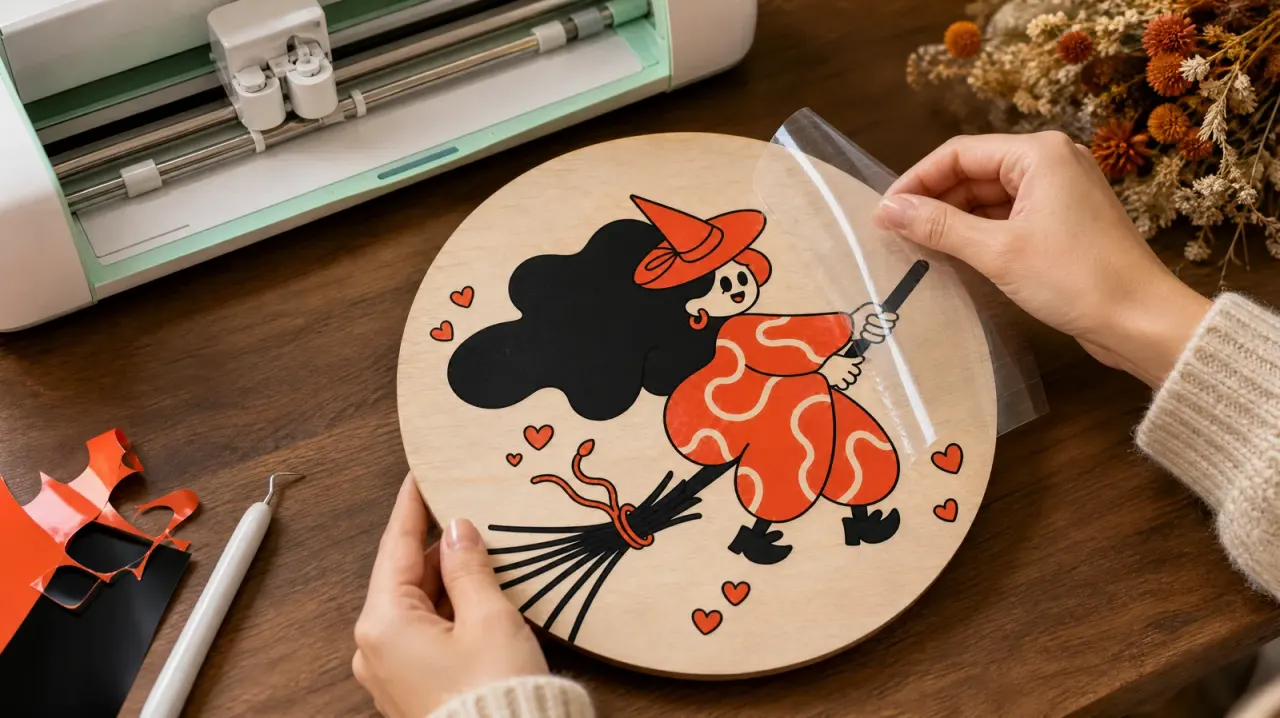
The short answer: upload your image to the VectorWitch Vectorizer, press Convert to SVG, and download a clean vector file made of smooth Bézier curves. It detects the kind of image for you, so there are no settings to guess, and you can try it for free with a preview before you pick a plan.
This guide explains what the Vectorizer does, how to get the cleanest result, and how the files work in Cricut Design Space, Silhouette Studio, LightBurn and the VectorWitch editor.
What Is an Image to SVG Converter?
Photos and most downloaded graphics are raster images (PNG, JPG, WEBP, AVIF). They are grids of pixels, so edges turn soft or blocky when you enlarge them, and cutting machines cannot follow them as paths.
An SVG describes the same picture as shapes: lines and curves with exact coordinates. It stays sharp at any size, it is easy to recolor and edit, and cutters and lasers can trace its outlines directly. A vectorizer (also called an image tracer) turns the pixels into those shapes for you.
How to Convert an Image to SVG in 3 Steps
Upload your image. PNG, JPG, WEBP, AVIF, HEIC (iPhone photos), GIF and BMP files up to 25 MB are supported. The long side should be at least 500 px.
Press Convert to SVG. The Vectorizer checks the image and picks the right conversion automatically.
Download or edit. Save the SVG, or open it in the VectorWitch editor to change colors, delete parts or add text.
Automatic Detection: Black & White, Illustration or Photo
Different pictures need different tracing. Choosing the wrong mode is the most common reason for a messy result, so the Vectorizer decides for you:
Detected type | Typical images | What you get |
|---|---|---|
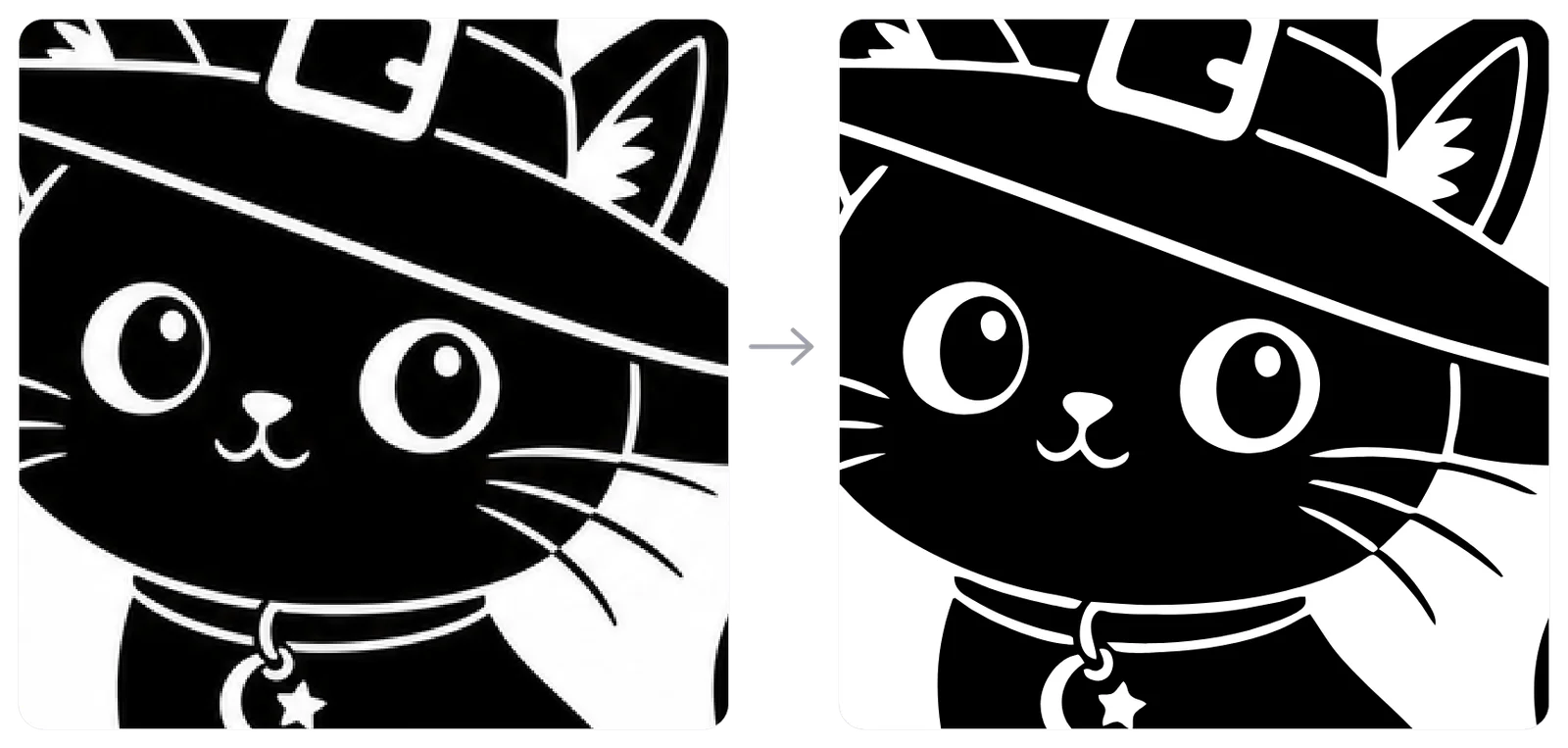
Black & white | Line art, logos, lettering, mandalas, coloring pages | One clean black shape, ideal for vinyl, stencils and laser engraving |
Color illustration | Cartoons, stickers, mascots, flat logos | Separate color layers with sharp corners and smooth curves |
Color photo | Photos and painted artwork | More colors and detail, larger files |
Clean Curves, Not Jagged Edges
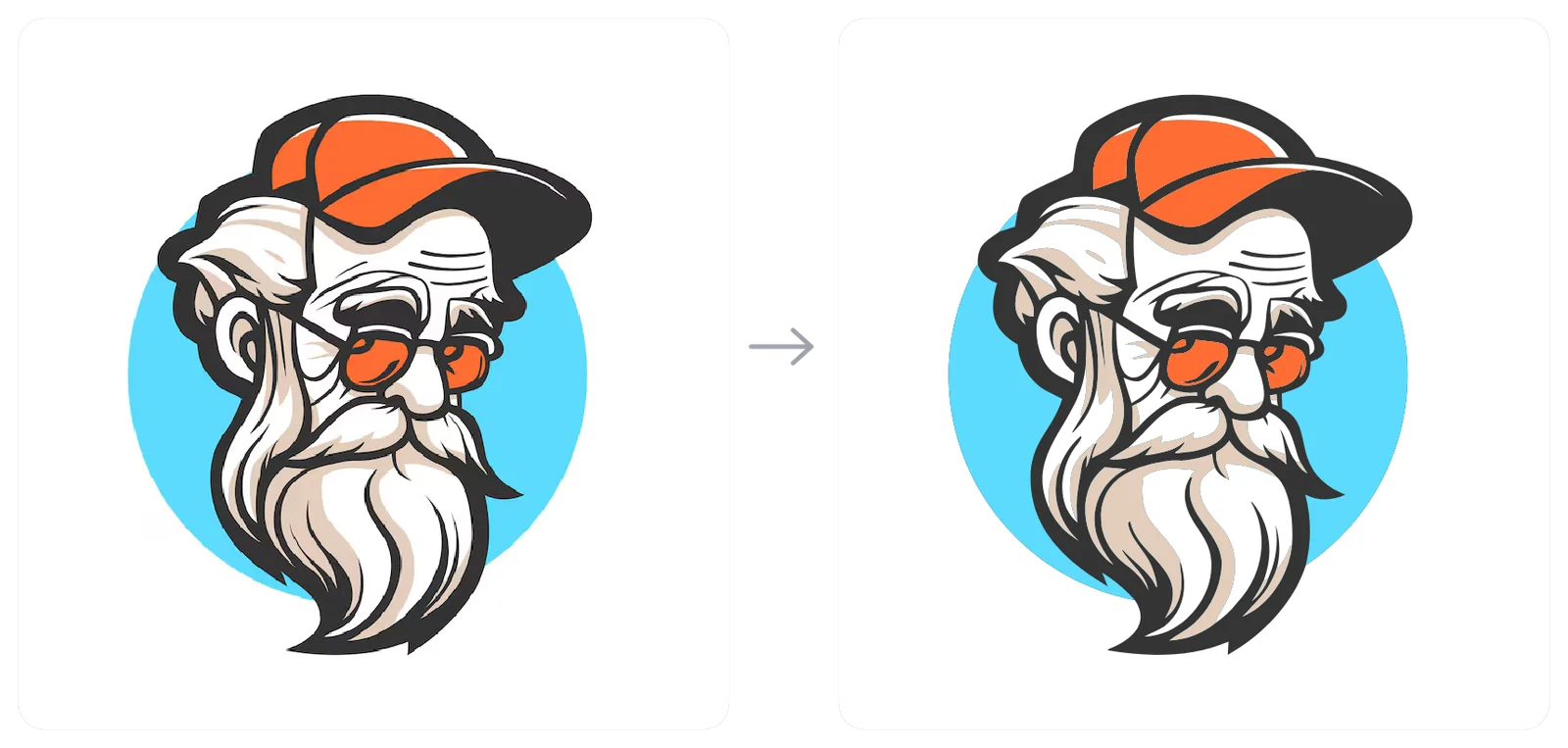
Many free tracers produce thousands of tiny points that follow every pixel step, which looks wobbly up close and slows down cutting. The Vectorizer fits smooth Bézier curves and keeps corners sharp only where the design has them. The result has fewer points, cleaner edges and straight lines that are actually straight.
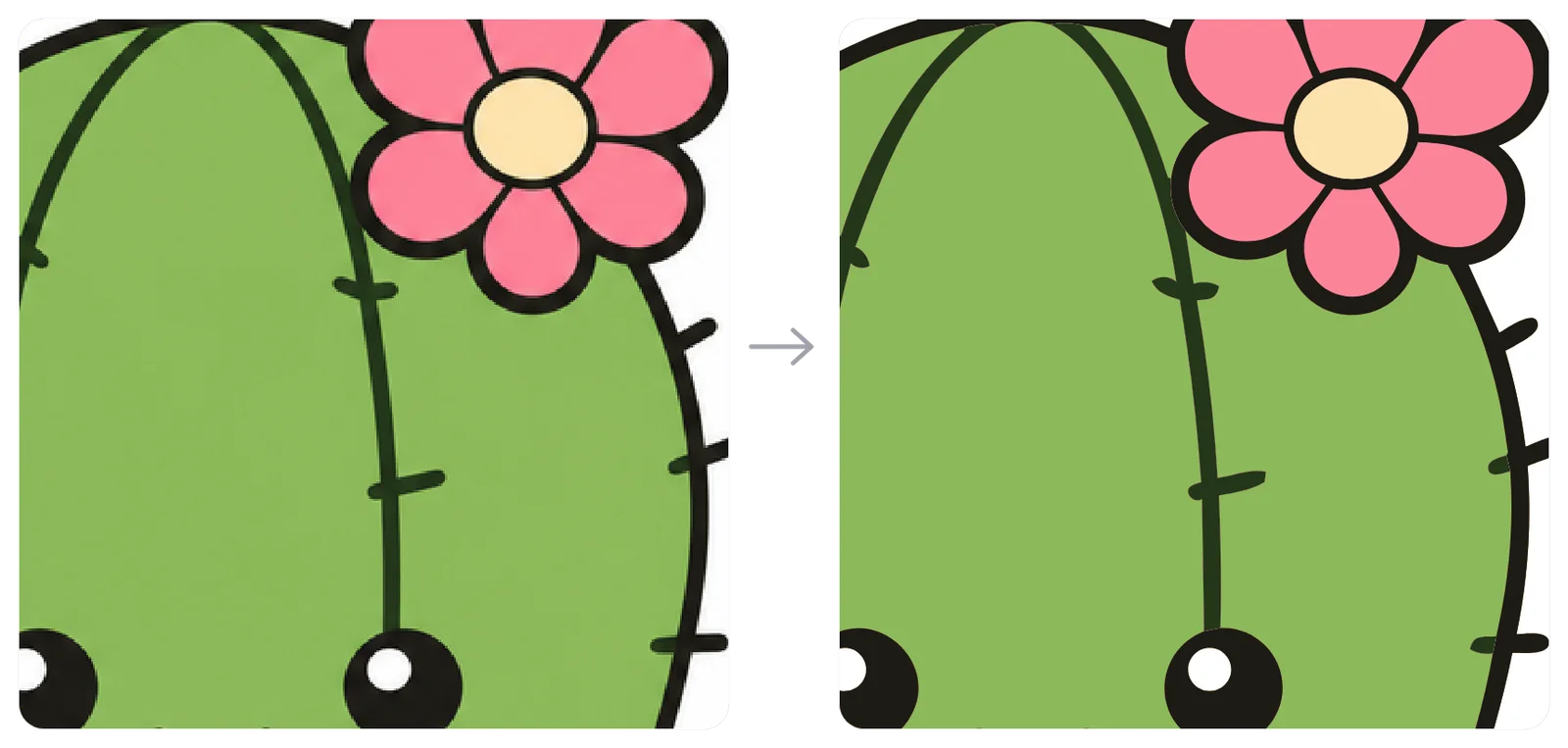
The difference is easiest to see when you zoom in. Line art benefits the most: thin strokes, eyelashes and small symbols keep their shape instead of melting together.
Tips for the Best Result
Start big. Use the largest version of your image. Anything under 500 px on the long side must be upscaled first; the page offers an Upscale first button that runs the AI Image Upscaler (1 credit) and continues with the sharper file.
Avoid blur. If the page warns that your image looks blurry, upscale it. AI upscaling adds real detail, so the traced lines come out cleaner.
Crop first. Remove borders, watermarks and busy backgrounds you do not want in the SVG. The Background Remover helps with photos.
Prefer flat colors for cutting. Illustrations with clear color areas give the cleanest layers for vinyl and paper.
Using Your SVG in Cricut, Silhouette and LightBurn
Cricut Design Space: upload the SVG; each color becomes a layer you can cut in its own material.
Silhouette Studio: open the SVG (Designer Edition or higher) and send the layers to cut.
LightBurn and other laser software: import the SVG and assign fill (engrave) or line (cut and score) to each color.
VectorWitch editor: click Open in Editor; every part of the design arrives as its own selectable shape.
Try It Free, Unlimited With Your Plan
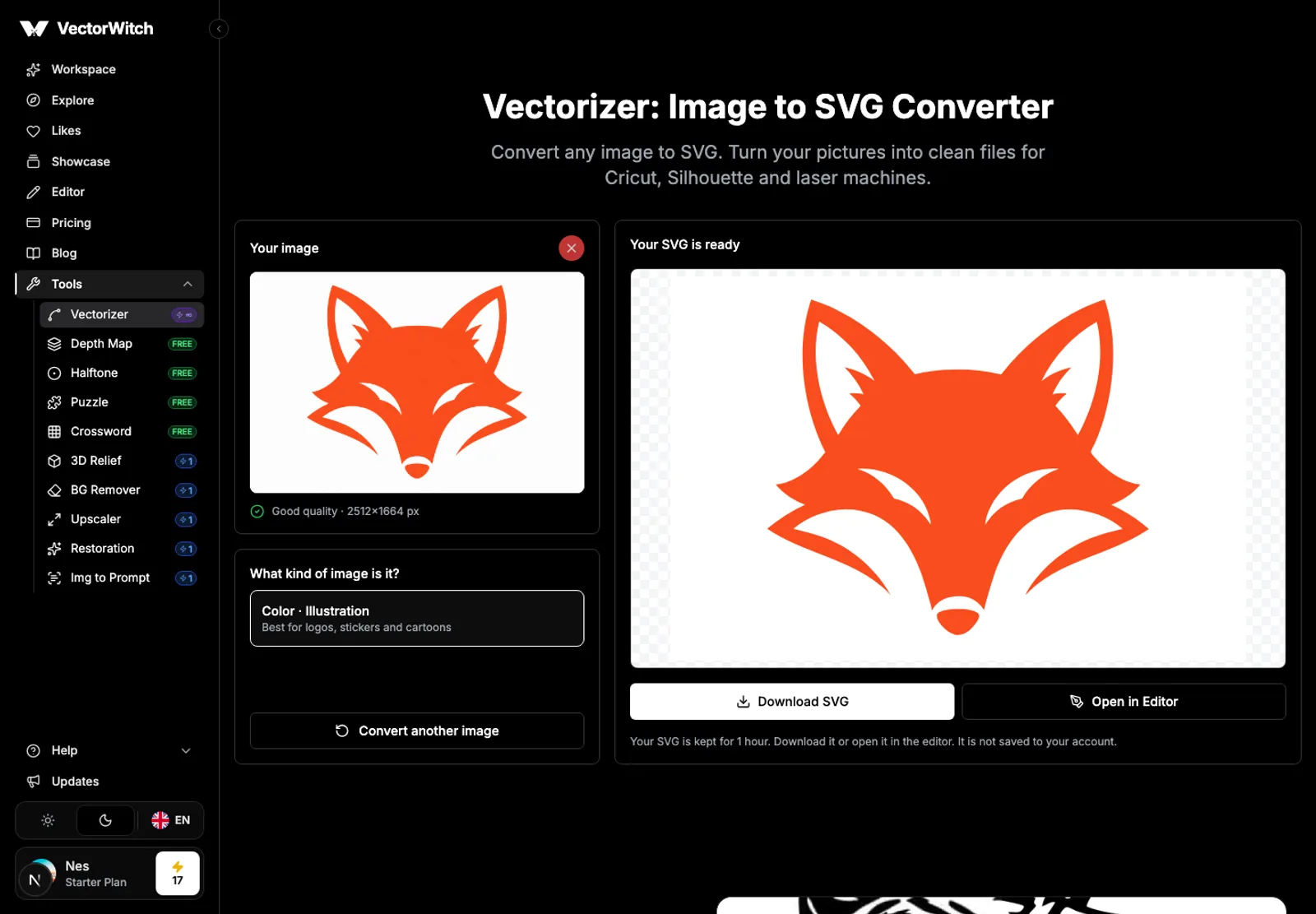
With a free VectorWitch account you can convert images and see a preview of each result, so you know exactly what you will get. Downloading the SVG and opening it in the editor come with every VectorWitch plan, together with unlimited conversions. If you convert something before subscribing, you can download that same result right after you pick a plan.
Your uploads stay private: the image and the SVG are not saved to your account or shown publicly, and they are deleted automatically.
Frequently Asked Questions
Is the Vectorizer free?
Converting and previewing are free with a free account. Downloading the SVG and editing it need a VectorWitch plan, which includes unlimited conversions.
Can I convert a photo to SVG?
Yes. Photos are detected automatically and traced with more colors and detail. For cutting projects, a simplified illustration or a black & white version usually works better than a detailed photo.
What is the minimum image size?
At least 500 px on the long side. Smaller images can be upscaled with AI first, right on the Vectorizer page.
Will my SVG work with Cricut and laser machines?
Yes. The file is a standard SVG with closed shapes, grouped by color, so Cricut Design Space, Silhouette Studio, LightBurn, Inkscape and Illustrator can all open it.
Ready to try it? Open the Vectorizer and turn your first image into a clean SVG.